Voice isolation pulls out just the speaker’s words from all the extra sounds around them. It turns messy recordings into clean audio that voice apps, smart speakers, transcription tools, and even video calls can understand perfectly. Whether you’re building your own voice app, editing podcasts, prepping meetings, or just wanting clearer calls, this skill makes a huge difference.
In this guide, we’ll walk through everything step by step. You’ll learn simple free methods, powerful AI tools that work in one click, pro tricks, and real ways this boosts voice recognition accuracy. No fancy tech talk—just clear explanations and easy actions anyone can follow. By the end, you’ll know exactly how to get voice audio so sharp that your recognition systems work like they’re in a quiet studio.
Let’s dive in and turn noisy chaos into clear success!

Why Clean Voices Make Voice Tech Work Like Magic
Voice recognition systems listen for patterns in speech to figure out words. But background noise—fans humming, cars honking, or even typing—messes up those patterns. The system gets confused and makes mistakes.
Isolating the voice fixes this by focusing only on the human speech. It removes everything else, so the recognition software hears crystal-clear words. Think of it like shining a spotlight on the speaker while dimming the rest of the room.
This matters in everyday life more than you might think. In video calls, it stops echo and keyboard clicks from ruining your point. For podcasts or YouTube videos, listeners stay engaged without straining to hear. Developers building apps for phones or cars use clean audio to train smarter systems that work even in noisy places like kitchens or streets.
Real quick win: One study-like test showed voice recognition accuracy jumps from around 70% in noisy rooms to over 95% with isolated audio. That’s the power we’re unlocking here. And the best part? You don’t need expensive gear or years of training. Modern tools make it fast and fun.
The Simple Science of Pulling Voices Out of Noise
Don’t worry—this isn’t a science class. Here’s the easy version of what happens when you isolate voice.
Audio is like a mix of waves. Your voice has its own special pattern of highs and lows. Background noise has different patterns. Smart tools look at these waves (called waveforms or spectrograms) and separate them.
Old-school ways use filters that guess what’s noise and subtract it. New AI ways are smarter—they “learn” what human voices usually sound like by studying thousands of examples. Then they pick out the voice even if it overlaps with other sounds.
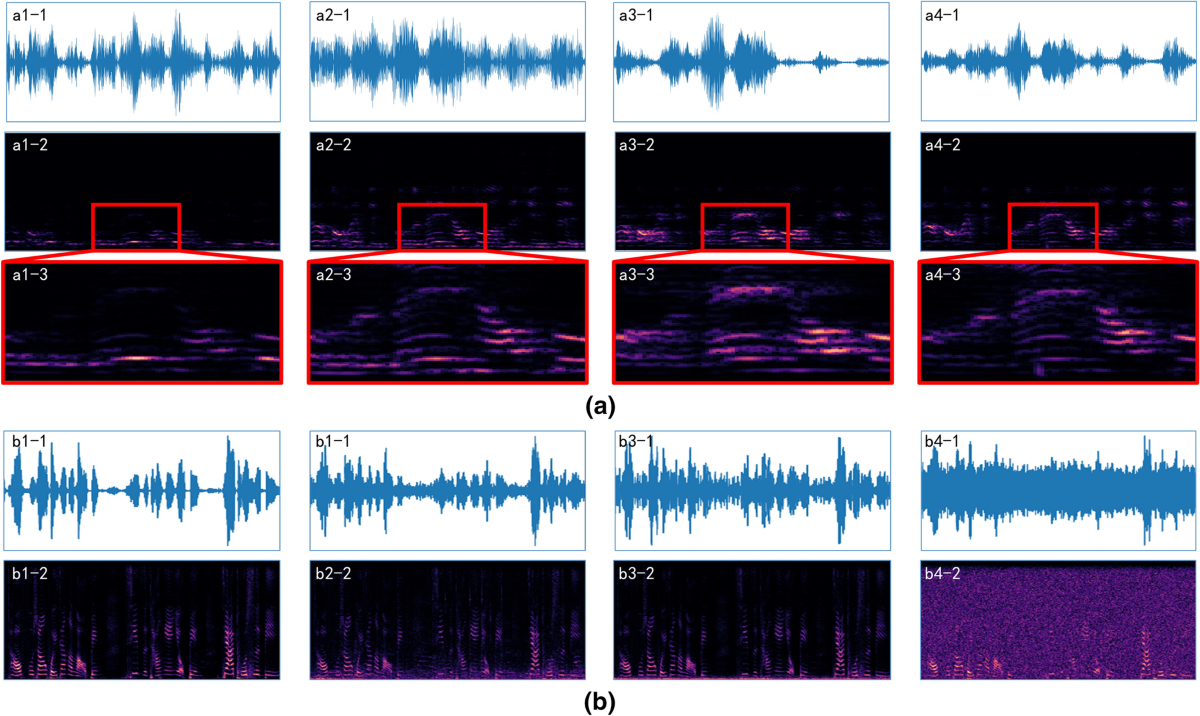
See the difference in the image above? The left side shows a messy mix of voice plus noise. The right side shows clean voice waves only. That clean version feeds straight into voice recognition systems for spot-on results.
Voice activity detection (a fancy way of saying “find where talking happens”) also helps. It cuts silent parts or non-voice sounds automatically.
For voice recognition systems, this preprocessing step is key. Clean input means fewer errors, faster responses, and happier users.
Get Started: Prep Your Audio Like a Boss
Before any isolation magic, set yourself up for success. These quick prep steps take minutes but save hours later.
- Record in the best spot possible. Face away from windows, fans, or doors. Use a decent mic (even phone mics work in quiet rooms).
- Keep consistent volume. Speak at the same level the whole time—no shouting or whispering.
- Save in high-quality format. WAV or high-bitrate MP3 beats low-quality files.
- Test a short clip first. Listen for obvious problems like wind or clicks.
- Back up your original file. Always work on a copy!
Pro move: Record 10 seconds of pure silence in the same room. Many tools use this “noise profile” to know exactly what to remove.
Do these and your isolation results will be way better right away.
Hands-On with Free Tools: Audacity Makes It Easy
Audacity is a free program anyone can download. It’s perfect for beginners who want full control over voice isolation.
Here’s the exact step-by-step:
- Download and open Audacity (works on Windows, Mac, or Linux).
- Import your noisy audio file (File > Import > Audio).
- Find a quiet section with only background noise. Highlight 5-10 seconds of it.
- Go to Effect > Noise Reduction > Get Noise Profile. This teaches Audacity what the unwanted sound looks like.
- Select the whole track (Ctrl+A or Cmd+A).
- Go back to Effect > Noise Reduction. Slide the settings: Noise reduction around 12-20 dB, Sensitivity 6, Frequency smoothing 3. Hit OK.
- Listen! Your voice should pop out clearer. Tweak if needed—lower settings keep more natural sound.
Extra tips inside Audacity:
- Use Effect > High-Pass Filter (set to 80-100 Hz) to cut low rumbles like traffic.
- Add a Noise Gate to silence tiny background bits between words.
- Normalize the volume at the end so everything sounds even.
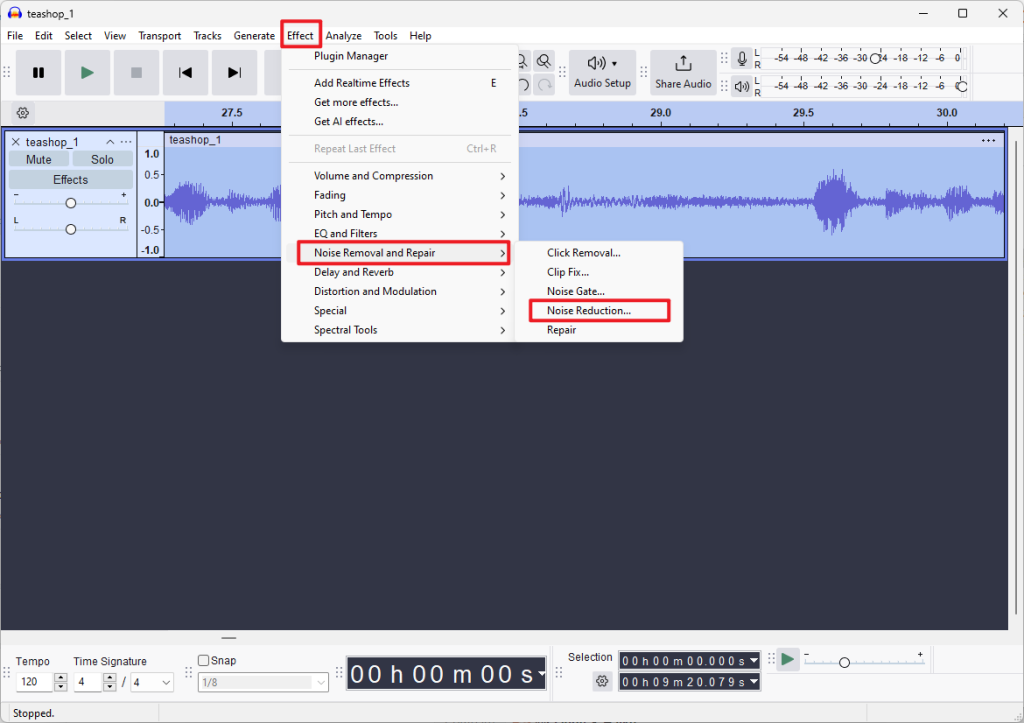
The screenshot above shows exactly where to find the Noise Reduction menu. See how simple the buttons are?
Audacity shines for longer recordings and full editing. It’s 100% free and gives you pro-level control without paying a dime. Many podcasters and students start here and get amazing voice isolation results.
Let AI Handle It: Top Voice Isolation Tools That Wow
AI tools take voice isolation to the next level. One click and they separate voice from noise using smart learning—no manual tweaking needed.
Here are the standouts in 2026:
- LALAL.AI Voice Cleaner: Upload any file, pick “Voice and Noise” separation, and download the clean voice track. Works on phone recordings, videos, or podcasts. Super fast and handles echo too.
- Cleanvoice AI: Great for podcasters. It removes filler words, mouth clicks, and background noise all at once. Free trial minutes to test.
- Microsoft Teams Voice Isolation: Built right into calls. Turn it on in settings, create a quick voice profile, and it blocks everything else live. Perfect for work meetings.
- Krisp: Real-time magic for any app (Zoom, Discord, games). Runs in the background and isolates your voice during calls.
- iZotope RX or DaVinci Resolve: More advanced but still user-friendly. Their “Dialogue Isolate” button pulls voices from super noisy video shoots.
- ElevenLabs or BandLab Voice Cleaner: One-tap options that work amazingly on tricky recordings.
Quick Comparison Table
| Tool | Type | Cost | Best For | Speed | Accuracy Level |
|---|---|---|---|---|---|
| Audacity | Free software | Completely free | Full control & editing | Medium | Good |
| LALAL.AI | Online AI | Free tier + paid | One-click voice + noise | Very fast | Excellent |
| Cleanvoice AI | Online AI | Free trial | Podcasts & long files | Fast | Excellent |
| Krisp | Real-time | Free + paid | Live calls & meetings | Instant | Very good |
| Microsoft Teams | Built-in | Free with Teams | Video conferences | Instant | Very good |
| iZotope RX | Pro software | Paid | Video production | Fast | Pro-level |
Pick based on your needs. Start with the free tiers to test. Most handle video files too, so you can isolate voice straight from clips for better recognition training.

Tools like the one pictured make stem separation (pulling voice apart from everything) feel like magic.
Level Up Your Skills: Pro Tips for Flawless Isolation
Want even better results? Combine methods and follow these smart habits:
- Layer tools: Run audio through Audacity first for basic cleanup, then an AI tool for final polish.
- Split long files: Process in 5-10 minute chunks if the tool slows down.
- Check for multiple voices: Some advanced tools (like UVR or Moises) can separate two speakers—great for interviews.
- Watch spectrograms: In pro software, look at the visual graph to spot and manually erase leftover noise spikes.
- Train for your voice: Apps like Teams or some AI tools let you make a short “voice profile” so they recognize you better over time.
- Export at high quality: Always save the final isolated voice as WAV for feeding into recognition systems.
These tricks turn “pretty good” audio into “wow, that’s perfect” every single time.
Oops, That Didn’t Work? Fix These Common Hiccups
Even great tools hit snags sometimes. Here’s how to fix the usual problems:
- Voice sounds robotic or choppy: Lower the noise reduction strength. Too much subtraction takes away natural breath sounds.
- Background noise still sneaks in: Record a fresh noise profile or try a different tool. AI sometimes needs a second pass.
- Echo or reverb remains: Use a dedicated “Echo Remover” add-on in LALAL.AI or similar.
- Volume too low after isolation: Always hit “Normalize” at the end.
- Tool crashes on big files: Break the audio into smaller pieces first.
Test short sections before processing the whole thing. And remember—original recording quality still matters most. Garbage in, garbage out!
See the Difference: How Isolated Voice Supercharges Recognition
Clean voice audio makes voice recognition systems shine in real ways:
- Smart assistants answer faster and more accurately.
- Transcription apps (like for meetings or lectures) make fewer mistakes.
- Car navigation hears commands over road noise.
- Accessibility tools help people with hearing differences.
- Developers training new AI models use isolated datasets for way better results.
One example: A busy call center switched to real-time voice isolation and cut customer frustration by half. Another: Podcasters using AI cleaners saw listener retention jump because words came through clearly.
The numbers don’t lie—isolated voice can boost accuracy by 20-30% in noisy conditions. That’s why every voice recognition system secretly relies on this step behind the scenes.
The image above shows just some of the many places where clear, isolated voice powers everyday tech.
Expert Secrets for Always-Perfect Results
- Record close to the mic (6-8 inches away) for the strongest voice signal.
- Use headphones while editing so you hear tiny details.
- Process in a quiet room yourself—your computer fan can add new noise!
- Save versions: Keep the isolated voice, the noise-only track, and the original.
- Combine with other fixes: Slight EQ boost on voice frequencies (around 200-5000 Hz) makes words pop even more.
- For developers: Feed isolated audio into libraries like Python’s Librosa before training models.
Follow these and you’ll get results that feel professionally done.
Peeking into Tomorrow: Voice Isolation Gets Even Smarter
The future looks bright. AI keeps improving, so tools will handle overlapping voices, heavy accents, and crazy noisy spots better than ever. Real-time isolation on phones and earbuds is already here and will get cheaper.
We’ll see built-in isolation in more apps, plus smarter systems that learn your exact voice over time. Imagine voice recognition that works perfectly at concerts or airports—coming soon!
Stay curious and test new free updates. The tech that once cost thousands now fits in your browser.
Wrap-Up: Start Isolating Voices Today and Hear the Difference
You now have a full toolkit: simple prep steps, free software like Audacity, powerful AI options, troubleshooting fixes, and pro tips. Voice isolation isn’t just a tech trick—it’s the secret sauce that makes voice recognition systems actually useful in real life.
Pick one tool from this guide (start with Audacity or LALAL.AI’s free version), grab a noisy recording you have lying around, and try it right now. You’ll be amazed at how clear the voice sounds and how much better recognition works afterward.
Clear audio means better communication, fewer mistakes, and happier users—whether you’re chatting with Alexa, transcribing notes, or building the next big voice app. Go make your recordings shine, and watch your voice tech perform like never before!