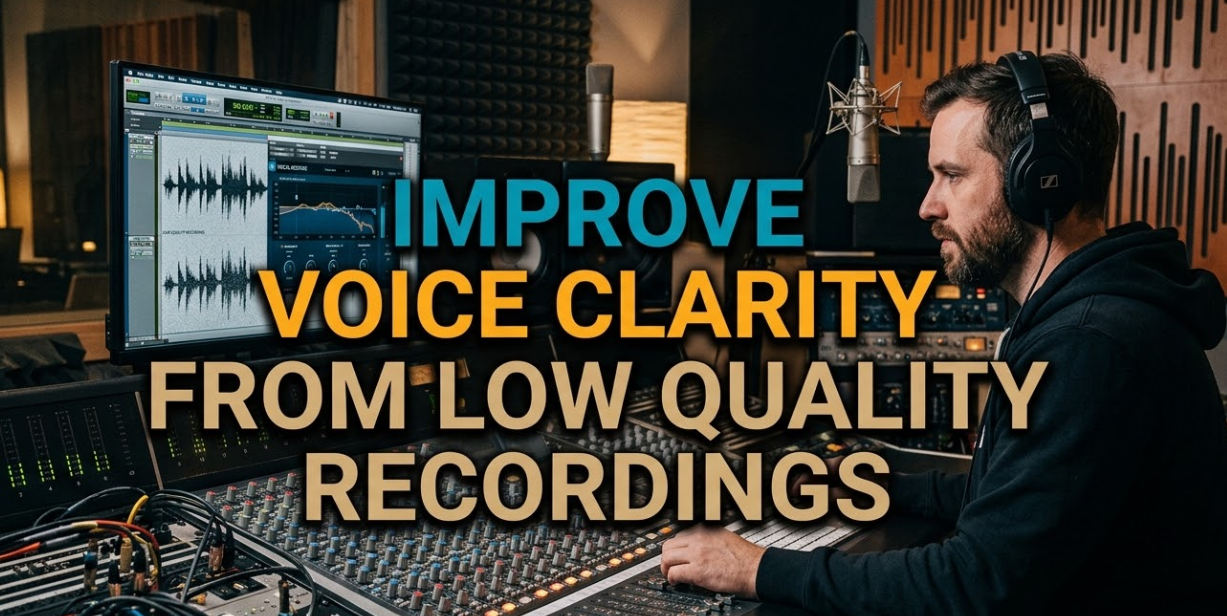
If you’ve ever recorded a voice memo, podcast, interview, or video only to play it back and hear a muffled mess of background noise, echoes, and distortion, you already know the frustration. Trying to improve voice clarity from low quality recordings is one of the most common audio challenges faced by content creators, journalists, students, and even professionals every single day.
The good news? You don’t need expensive studio equipment or years of audio engineering experience to fix bad recordings. With the right tools, techniques, and a little patience, you can take almost any rough audio file and clean it up to sound crisp, clear, and professional.
This guide breaks everything down step by step — from understanding why recordings sound bad in the first place, to the best free and paid software tools, to advanced tips that will give your audio a polished finish. Whether you’re restoring an old family interview, cleaning up a podcast episode, or fixing a noisy Zoom call recording, this article has everything you need.
Why Recordings Sound Bad in the First Place
Before you can fix a problem, you have to understand what caused it. Poor voice recordings usually come from one or more of these core issues.
Background Noise is the most common culprit. Air conditioners, traffic, keyboard clicks, fans, and crowd noise all sneak into recordings. Your microphone picks up everything in the room — not just the speaker’s voice.
Room Echo and Reverb happen when sound bounces off hard surfaces like walls, floors, and ceilings. This creates that “hollow” or “bathroom-like” quality that makes speech hard to follow.
Low Bitrate and Compression Artifacts occur when audio files are heavily compressed (like low-quality MP3s). This creates a metallic or “watery” distortion that’s very difficult to fix.
Poor Microphone Placement means the speaker was too far from the mic, or the mic was pointing in the wrong direction. This leads to thin, quiet, distant-sounding vocals.
Clipping and Distortion happens when the recording volume was too loud, causing the audio signal to exceed its limits and produce harsh, crackling sounds.
Knowing which problem you’re dealing with will help you pick the right solution.
The Basic Toolkit: What You Need to Get Started
You don’t need to spend a fortune to get started. Here’s a quick look at what most people use to improve voice clarity from low quality recordings:
| Tool Type | Free Options | Paid Options |
|---|---|---|
| Desktop Software | Audacity, Ocenaudio | Adobe Audition, iZotope RX |
| Online Tools | Podcastle AI, Cleanvoice | Adobe Podcast Enhance, NVIDIA RTX Voice |
| Mobile Apps | Dolby On, Krisp | Auphonic (subscription) |
| AI-Based Tools | Adobe Podcast (free tier) | iZotope RX 10, Descript |
Start with free tools if you’re just getting started. Once you need more precise control, paid tools offer far better results.
Step-by-Step: How to Improve Voice Clarity From Low Quality Recordings
Let’s walk through the actual process of cleaning up a bad recording. These steps work whether you’re using Audacity (free) or a professional DAW (Digital Audio Workstation).
Step 1 — Listen First, Edit Second
Before touching any settings, listen to the entire recording from start to finish with headphones on. As you listen, take notes on:
- Where the background noise is loudest
- Any sections with echo or reverb
- Moments where the speaker clips or sounds distorted
- Parts where the voice drops too low
This step saves you hours of guesswork later.
Step 2 — Reduce Background Noise
Noise reduction is usually the first and most important step. Here’s how to do it in Audacity (the most popular free option):
- Find a section of the recording where only background noise is playing (no voice).
- Select that section and go to Effect > Noise Reduction > Get Noise Profile.
- Now select the entire recording.
- Go back to Effect > Noise Reduction and apply it.
Start with a reduction of around 12–18 dB. Going too high will make the voice sound robotic or “underwater.”
Pro tip: NVIDIA RTX Voice and Krisp are AI-powered tools that remove background noise in real time with almost no manual adjustment needed. They’re worth trying if you process audio regularly.
Step 3 — Cut Out Unwanted Frequencies with EQ
Equalization (EQ) lets you boost or cut specific frequency ranges. For voice clarity, these are the key frequency targets:
| Frequency Range | What It Affects | What to Do |
|---|---|---|
| Below 80 Hz | Rumble, hum, vibration | Cut aggressively (high-pass filter) |
| 200–400 Hz | Muddiness, boominess | Cut slightly to clean up |
| 1,000–3,000 Hz | Core voice presence | Boost slightly for clarity |
| 5,000–8,000 Hz | Consonants, crispness | Boost gently for articulation |
| Above 10,000 Hz | Hiss, air | Cut if noisy, boost if dull |
Most audio editors have a graphic EQ or parametric EQ built in. Apply a high-pass filter at 80 Hz first — this alone can make a huge difference.
Step 4 — Compress the Audio
A compressor evens out the volume levels so quiet parts get louder and loud parts get quieter. This makes speech easier to follow, especially when the speaker moves around or changes volume often.
Basic compressor settings for voice:
- Threshold: -20 to -15 dB
- Ratio: 3:1 to 5:1
- Attack: 5–10 ms
- Release: 60–100 ms
- Makeup Gain: adjust until the output sounds balanced
Don’t over-compress. If you crush the audio too hard, it starts to sound flat and lifeless.
Step 5 — Apply De-Essing (Optional but Helpful)
A de-esser targets harsh “S” and “SH” sounds that can become sharp and unpleasant after EQ boosts. Many audio editors include a de-esser plugin. Apply it gently — just enough to soften the harshness without removing the natural crispness of speech.
Step 6 — Reduce Echo and Reverb
Reverb reduction is one of the hardest things to do with free tools. However, a few options do exist:
- iZotope RX has a dedicated “De-reverb” module that works extremely well.
- Audacity can reduce reverb slightly using the Noise Reduction tool, though results are limited.
- Adobe Podcast Enhance (available free online) uses AI to reduce room echo automatically — and it does this impressively well.
If you’re using a free tool and can’t fully remove reverb, focus on boosting the mid-range frequencies (1,000–3,000 Hz) to bring the voice forward and make it feel more present.
Step 7 — Normalize and Final Level Check
Normalization sets your audio to a consistent peak volume level. Most platforms recommend:
- Podcasts: -16 LUFS
- YouTube/Video: -14 LUFS
- Streaming (Spotify, Apple Podcasts): -14 to -16 LUFS
In Audacity, go to Effect > Normalize and set the peak amplitude to around -1 dB. This leaves headroom without making the audio too quiet.
The Best AI Tools to Improve Voice Clarity From Low Quality Recordings
AI has completely changed what’s possible in audio restoration. Here are the top tools worth knowing about right now.
Adobe Podcast Enhance
This free online tool is one of the best options available for non-technical users. You simply upload your audio file, and Adobe’s AI processes it in seconds. It removes background noise, reduces reverb, and enhances voice clarity automatically — no settings needed.
Try Adobe Podcast Enhance here — it works directly in your browser and supports most common audio formats.
iZotope RX
This is the industry standard for audio restoration. It offers tools like:
- Dialogue Isolate (separates voice from background)
- De-reverb (removes echo)
- De-noise (removes background noise)
- De-click (removes pops and crackles)
- Voice De-noise (AI-powered, built specifically for speech)
iZotope RX is used by Hollywood sound engineers, podcast producers, and broadcasters worldwide. It’s a paid tool, but RX Elements (the entry-level version) is affordable and very powerful.
Auphonic
Auphonic is an online audio processor specifically designed for podcasts and voice recordings. It handles leveling, noise reduction, and loudness normalization automatically. The free tier gives you 2 hours of processing per month, which is enough for most casual users.
NVIDIA RTX Voice / RTX Broadcast
If you have an NVIDIA RTX graphics card, this free tool is a game changer. It removes background noise in real time during calls, streams, or recordings. It’s incredibly effective against consistent background noise like fans, air conditioners, and office chatter.
Common Mistakes That Make Audio Worse
Even with the right tools, it’s easy to over-process audio and make it sound worse than when you started. Watch out for these common mistakes.
Over-applying Noise Reduction creates a metallic, robotic artifact known as “noise reduction artifacts.” It sounds like the voice is underwater or surrounded by digital static. Always apply noise reduction conservatively.
Boosting High Frequencies Too Much adds harshness and makes “S” sounds painful to hear. If you boost above 5,000 Hz, do it gently — 2 to 3 dB at most.
Skipping the High-Pass Filter leaves unnecessary low-frequency rumble that muddies the entire audio, even if the voice itself sounds fine.
Applying Effects in the Wrong Order can create new problems. The correct general order is: noise reduction → EQ → compression → limiting. Doing them in a different order can introduce distortion.
Not Listening on Multiple Speakers means you might fix the audio on headphones but it still sounds bad on laptop speakers or in a car. Always check your final mix in more than one place.
Tips Specifically for Different Recording Situations
Not all bad recordings come from the same place. Here are situation-specific tips.
Old Interview or Voice Memo Recordings
Old recordings often suffer from poor dynamic range and heavy background noise. Focus on:
- Gentle noise reduction (don’t over-process)
- High-pass filter at 100 Hz (old mics often had low-frequency rumble)
- Mid-range boost around 1,500–2,500 Hz to bring the voice forward
- Avoid over-compressing — old recordings are already limited dynamically
Zoom, Teams, or Phone Call Recordings
These recordings are often compressed at low bitrates. This makes high-frequency restoration very difficult. Instead:
- Focus on clarity in the mid-range (1,000–3,000 Hz)
- Use AI tools like Adobe Podcast Enhance or Krisp — they’re designed for this type of audio
- Accept some quality limits — heavily compressed audio can only be improved so much
Outdoor or Field Recordings
Wind noise is the enemy here. You’ll need a dedicated “De-wind” or low-cut filter set high (around 120–150 Hz) to remove wind rumble. Tools like iZotope RX handle this best.
Video Voiceovers Recorded Without a Proper Mic
Smartphone or webcam audio usually lacks depth and presence. In addition to standard noise reduction and EQ, try adding gentle saturation (a very light amount) to add warmth to thin-sounding vocals.
How Much Can You Actually Improve a Bad Recording?
This is a question everyone asks — and the honest answer is: it depends on how bad the original recording is.
Here’s a realistic expectation guide:
| Recording Quality | What’s Fixable | What’s Not |
|---|---|---|
| Slightly noisy but clear voice | 90% fixable — near-perfect result possible | Minor compression artifacts may remain |
| Heavy background noise with clear voice | 60–80% fixable — significant improvement | Some noise artifacts may remain |
| Muffled voice with reverb | 50–70% fixable — usable but not perfect | Full reverb removal rarely possible |
| Heavily clipped or distorted | 20–40% fixable — limited improvement | Clipping causes permanent damage |
| Very low bitrate (low-quality MP3) | 30–50% fixable — AI can help | High-frequency data is permanently lost |
The takeaway: even a badly damaged recording can usually be made more usable. But no tool can completely restore audio information that was never captured in the first place.
For Content Creators: Improve Voice Clarity From Low Quality Recordings in Your Workflow
If you regularly produce audio or video content, here are some workflow habits that will save you hours of editing time.
Record a “room tone” sample. Before every session, record 10–15 seconds of silence in the room. This gives you a clean noise profile for the noise reduction tool to reference.
Monitor your levels while recording. Keep your recording peaks between -12 dB and -6 dB. This gives you headroom without risking clipping.
Use a pop filter and mic stand. These simple accessories reduce plosives (“P” and “B” sounds) and mic handling noise, which are some of the hardest problems to fix in post-production.
Process in batches. If you process many recordings regularly, tools like Auphonic or iZotope RX 10 allow batch processing — clean dozens of files with the same settings automatically.
Save your EQ and compressor presets. Once you find settings that work for your voice and room, save them as a preset so you don’t have to start from scratch each time.
For more tips on audio, content creation tools, and tech guides, check out CryptoNews21 — a useful resource that covers tech trends and digital tools across different industries.
Free vs. Paid: Which Should You Choose?
This question doesn’t have a single right answer. It depends on how often you process audio and what results you need.
Go free if:
- You process audio occasionally (once a month or less)
- The recordings have mild background noise only
- You’re just starting out and still learning
- You’re using Audacity with the Noise Reduction + EQ approach
Go paid if:
- You produce podcasts, YouTube content, or professional media regularly
- You deal with reverb, heavy noise, or clipping frequently
- You need batch processing to handle many files at once
- You want the best possible results with minimal manual effort
Best value paid tools:
- iZotope RX Elements — around $99, enormous improvement over free tools
- Adobe Audition — part of Adobe Creative Cloud, excellent for video creators already in the Adobe ecosystem
- Descript — combines transcription, editing, and audio cleanup in one tool, very beginner-friendly
FAQs: Improve Voice Clarity From Low Quality Recordings
Q1: Can I fully restore a recording that was made in a loud room?
It depends. If the voice is clearly audible above the background noise, AI tools like Adobe Podcast Enhance or iZotope RX can often improve it dramatically. If the background noise is louder than the voice itself, full restoration is unlikely, but it can still be made more listenable.
Q2: Is Audacity good enough to improve voice clarity from low quality recordings?
Yes — for mild to moderate problems. Audacity’s noise reduction and EQ tools work well for simple cases. For heavy reverb, severe clipping, or extremely noisy recordings, a paid tool like iZotope RX will give much better results.
Q3: How do I fix audio that sounds muffled or “underwater”?
Muffled audio usually means the high frequencies are missing or heavily suppressed. Boost the frequency range between 3,000–8,000 Hz using an EQ. Be careful not to boost too aggressively, as this can add harshness. Also check if over-applied noise reduction is the cause — if so, reduce the noise reduction amount.
Q4: What’s the fastest way to clean up a bad recording without technical skills?
Use Adobe Podcast Enhance (free) at podcast.adobe.com/enhance. Upload your file, wait a few seconds, and download the cleaned version. It handles noise reduction, reverb removal, and voice enhancement automatically.
Q5: Does the file format matter when restoring audio?
Yes. Always work with the highest quality version of the file available. If possible, use WAV or FLAC files instead of MP3. Compressed formats like MP3 have already lost audio data, which makes restoration harder. Export your finished file as WAV or high-bitrate MP3 (at least 192 kbps).
Q6: Can phone recordings be cleaned up to sound professional?
Mostly yes. Modern AI tools like Adobe Podcast Enhance and Auphonic are specifically designed to handle smartphone audio. You won’t get studio quality, but you can get clear, usable audio that sounds polished enough for podcasts or video content.
Q7: What’s the difference between noise reduction and noise gate?
Noise reduction lowers background noise throughout the entire recording, even when the person is speaking. A noise gate cuts the audio completely to silence when the volume drops below a set threshold — useful for removing noise during pauses, but it doesn’t clean up audio while the person is talking. For voice recordings, noise reduction is usually more useful.
Q8: Is there a way to improve voice clarity from low quality recordings on a phone or tablet?
Yes. Apps like Dolby On (free, iOS and Android) can process recordings directly on your phone. For more control, the Auphonic mobile app works well. These aren’t as powerful as desktop software, but they’re a solid option for quick cleanup on the go.
Conclusion: Clean Audio Is Within Reach
No matter how bad your recording sounds right now, there’s almost always something that can be done to make it better. The process of improving voice clarity from low quality recordings has become dramatically more accessible thanks to AI tools that automate the hardest parts.
Start with a free tool like Adobe Podcast Enhance to see how much improvement is possible without any technical skills at all. If you need more control, Audacity gives you powerful manual tools at no cost. And if you process audio regularly or need professional-grade results, iZotope RX is the gold standard.
The key is to take it one step at a time — listen carefully first, apply changes conservatively, and always compare your edited version to the original. With practice, cleaning up a noisy or muffled recording starts to feel like second nature.
Your audience deserves to hear you clearly. Now you have the tools to make that happen.