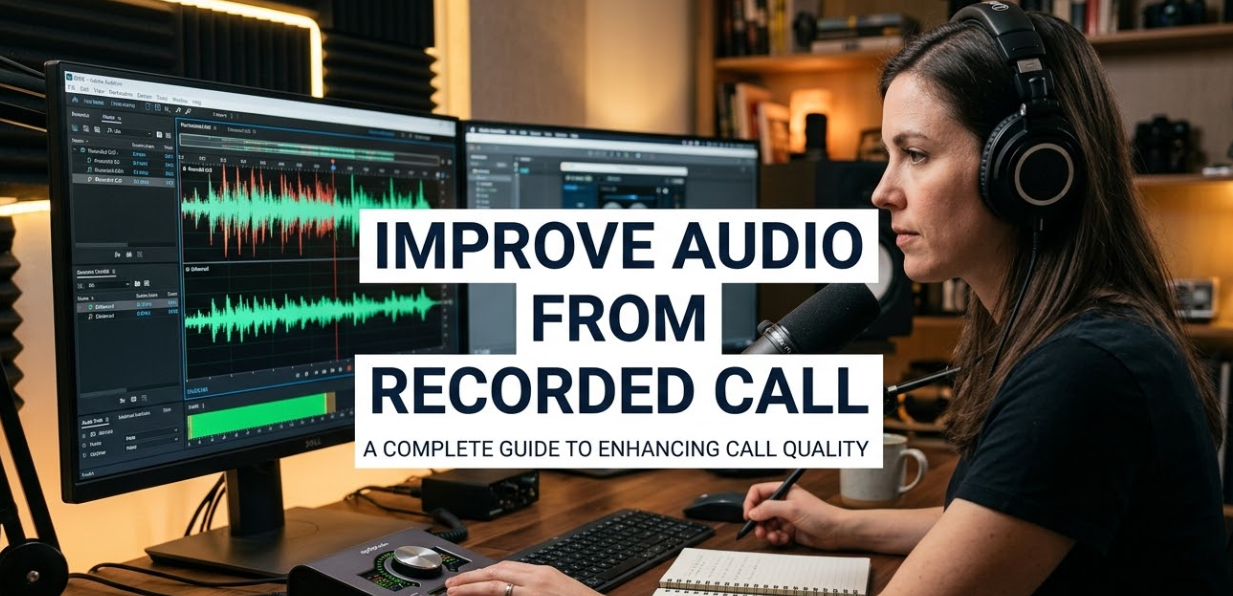
Have you ever replayed a recorded call only to hear muffled voices, annoying background noise, or crackling static? You are not alone. Poor audio quality is one of the most frustrating problems for anyone who records phone calls, video meetings, or podcast interviews. The good news is that there are proven, practical ways to improve audio from recorded call files — and you do not need to be a sound engineer to do it.
Whether you are a journalist, a student, a business professional, or a content creator, this guide walks you through everything you need to know. From understanding why call audio goes bad, to using the best free and paid tools, to applying simple editing techniques — this is your one-stop resource.
Why Does Recorded Call Audio Sound So Bad?
Before you fix a problem, it helps to understand what caused it. Recorded call audio can suffer from several issues, and each one has a different solution.
The Most Common Culprits Behind Poor Call Quality
Background Noise is one of the biggest enemies of clear audio. Traffic sounds, fans, air conditioners, keyboard clicks, and even other people talking can bleed into your recording.
Echo and Reverb happen when your voice bounces off walls or hard surfaces. This is especially common in large rooms or home offices without carpeting or soft furniture.
Low Bitrate Compression is a technical issue. Many phone calls and video conferencing platforms compress audio heavily to save bandwidth. This squashes quality and often makes voices sound “tinny” or robotic.
Microphone Distance or Placement matters a lot. If a speaker was too far from their microphone — or used a built-in phone mic — the audio will sound thin and distant.
Clipping and Distortion happen when audio levels are too loud, causing a harsh, buzzy sound.
Once you know the cause, choosing the right fix becomes much easier.
Quick-Look: Common Audio Problems and Their Fixes
| Audio Problem | Likely Cause | Best Fix |
|---|---|---|
| Background noise | Open windows, fans, AC | Noise reduction filter |
| Echo/reverb | Hard room surfaces | De-reverb tool |
| Muffled voice | Low bitrate, thick compression | EQ boost (2k–5kHz range) |
| Clipping/distortion | Volume too high | Limiter or manual volume reduction |
| Robotic voice | Heavy codec compression | AI voice enhancement |
| Hiss or hum | Electrical interference | High-pass filter or noise gate |
Step-by-Step: How to Improve Audio From a Recorded Call
Let us walk through the process from start to finish. You do not need expensive gear. Many of these steps work with free tools.
Step 1 — Get the Right Software First
Choosing the right tool is the foundation. Here are the most popular options for fixing call audio:
Audacity (Free) — A powerful, open-source audio editor available on Windows, Mac, and Linux. It has built-in noise reduction, equalization, and compression tools. It is the go-to choice for beginners.
Adobe Audition — A professional-grade editor with more advanced tools. It has an “Essential Sound” panel that can clean up dialogue audio in just a few clicks. Best for professionals who already use Adobe software.
Krisp — An AI-powered noise cancellation tool that works in real time but can also process recordings. It removes background noise remarkably well.
NVIDIA RTX Voice — Similar to Krisp, but works with NVIDIA graphics cards. Great for real-time processing.
VocalRemoverX — An online tool that can help isolate and clean vocal tracks from mixed audio files. You can visit https://vocalremoverx.com/ to explore its audio processing features for cleaning up call recordings.
Adobe Podcast Enhance (by Adobe) — A free web tool that uses AI to make recorded speech sound like it was recorded in a professional studio. It is surprisingly powerful for a free tool.
Step 2 — Import Your Audio File
Open your software and import your recorded call. Common file formats include:
- MP3 — Most common, but lossy. Quality is already compressed.
- WAV — Uncompressed, higher quality. Best format to work with.
- M4A — Common for iPhone recordings.
- OGG — Open-source format used by some apps.
If your file is in MP3 or M4A, that is fine — just try not to export it as MP3 multiple times, as each export removes more quality.
Step 3 — Apply Noise Reduction
Noise reduction is usually the first and most important step.
In Audacity:
- Find a section of your recording with only background noise (no talking).
- Highlight that section.
- Go to Effect → Noise Reduction.
- Click “Get Noise Profile.”
- Now select the entire recording.
- Go back to Effect → Noise Reduction and hit OK.
Start with moderate settings. Too much noise reduction makes voices sound hollow or “underwater.”
Recommended starting settings in Audacity:
- Noise Reduction: 12 dB
- Sensitivity: 6.00
- Frequency Smoothing: 3
Adjust from there based on how your audio sounds.
Step 4 — Use Equalization to Boost Voice Clarity
EQ (equalization) helps you shape the sound by boosting or cutting specific frequency ranges.
For call audio and recorded speech, here is a simple EQ approach:
| Frequency Range | What to Do | Why |
|---|---|---|
| Below 80 Hz | Cut (reduce) | Removes rumble and low-end noise |
| 80–200 Hz | Slight cut | Cleans up muddiness |
| 300–800 Hz | Leave mostly flat | Core warmth of voice |
| 1kHz–5kHz | Slight boost | Adds presence and clarity |
| 5kHz–8kHz | Boost lightly | Adds crispness and detail |
| Above 10kHz | Cut or reduce | Removes hiss |
In Audacity, go to Effect → Equalization → Graphic EQ or use the Filter Curve tool.
Step 5 — Apply Compression
Dynamic range compression evens out the volume. When one speaker is loud and another is quiet, compression helps bring them closer together in volume. This makes listening much easier.
In Audacity: Go to Effect → Compressor.
Recommended starting settings:
- Threshold: –18 dB
- Ratio: 3:1
- Attack Time: 0.20 seconds
- Release Time: 1.00 second
Step 6 — Normalize or Amplify the Final Output
Once you have cleaned up the audio, the final step is making sure the volume is at a comfortable listening level.
Normalize sets the loudest peak to a specific level (usually –1 dB or –3 dB). Amplify raises all audio by a set amount.
In Audacity: Go to Effect → Normalize. This ensures your audio is not too quiet or too loud.
AI Tools That Can Improve Audio From Recorded Calls Automatically
Artificial intelligence has changed the game completely. You no longer need to manually apply every filter. Several AI-powered tools can analyze and fix recorded audio in minutes — sometimes with just one click.
Top AI-Powered Audio Enhancement Tools
Adobe Podcast Enhance Speech This free browser-based tool by Adobe is arguably the easiest way to improve call audio fast. Upload your file, click enhance, and download the result. It uses AI to remove noise and boost voice clarity. Results are often dramatic.
LALAL.AI Originally built to separate music stems, LALAL.AI also has a voice enhancement mode. It is particularly good at removing background noise from poor-quality call recordings.
Resemble Enhance (Free & Open Source) This is an open-source AI tool specifically designed to enhance speech recordings. It works well on call recordings that suffer from compression artifacts or heavy background noise.
Cleanvoice AI Cleanvoice is a podcast-focused tool, but it works great on call audio too. It removes filler words, mouth sounds, background noise, and silences automatically. A huge time-saver.
According to research from Stanford’s Human-Computer Interaction Group, listeners judge speakers as more credible and professional when audio quality is high. This reinforces how important it is to improve audio from recorded calls before sharing them. (Source: Stanford HCI Group)
How to Improve Audio From Recorded Calls on a Smartphone
Not everyone has a desktop computer. Here are some mobile-friendly options.
Best Mobile Apps for Cleaning Call Audio
Krisp Mobile (iOS and Android) — Removes background noise from recordings in real time and after the fact.
AudioFix (iOS) — A popular app specifically designed to fix phone recordings. It can boost volume, reduce noise, and even slow down audio for transcription.
WaveEditor (Android) — A fully-featured audio editor for Android. It includes noise reduction and EQ tools.
Dolby On (iOS and Android) — Records and automatically enhances audio with Dolby’s processing. Great for interviews recorded on a smartphone.
Most of these apps are free or low-cost and do not require any technical background to use effectively.
Pro Tips for Better Call Audio Before You Even Record
Prevention is always better than repair. Here are some habits that will dramatically reduce how much cleanup work you need to do afterward.
Record Smart — Save Time on Fixes Later
Use a dedicated microphone. Even a basic $30 USB microphone is dramatically better than a built-in laptop or phone mic. Brands like Blue Yeti, Samson, and Audio-Technica make affordable options.
Record in a quiet space. Close windows. Turn off fans and air conditioning if possible. Hang a blanket or coat on the door to reduce echo.
Use headphones with a boom mic. A simple gaming headset with a boom microphone placed close to your mouth can produce surprisingly good call audio.
Record locally, not just through the platform. Apps like Zoom, Google Meet, and Teams compress audio for streaming. Tools like Craig (Discord), Riverside.fm, and Zencastr record each participant’s audio locally before compression happens.
Test before your call. Do a 30-second test recording and listen back. It is much easier to fix a microphone placement issue before the call than after.
Comparing Free vs. Paid Methods to Improve Call Audio
| Feature | Free Tools | Paid Tools |
|---|---|---|
| Noise reduction | Audacity, Adobe Enhance (basic) | iZotope RX, Adobe Audition |
| Ease of use | Moderate (some learning curve) | High (polished interfaces) |
| AI enhancement | Adobe Enhance, Resemble | Krisp Pro, LALAL.AI |
| Batch processing | Limited | Yes (most paid tools) |
| Speed | Manual, slower | Fast, often automated |
| Best for | Students, beginners, light use | Professionals, heavy use |
How to Improve Specific Types of Recorded Call Audio
Different types of calls have different problems. Here is a quick breakdown.
Zoom and Google Meet Recordings
These recordings are usually compressed. Voices may sound slightly metallic. Use:
- Adobe Enhance to clean the voice
- A gentle EQ boost at 3kHz–5kHz for presence
- Normalize to –1 dB for consistent volume
Phone Call Recordings (Cellular)
Mobile call audio is heavily compressed. It often has a narrow frequency range and sounds thin. Use:
- Noise reduction first
- EQ boost above 2kHz to add presence
- Gentle reverb-removal if the caller was in a large room
Podcast or Interview Recordings
These may have multiple speakers with different audio quality. Use:
- Separate tracks per speaker if possible
- Individual noise reduction on each track
- Match volume levels between speakers using normalization
Voicemail Recordings
These are often very low quality. They are short, so you can afford to use heavy processing. Use:
- Maximum noise reduction settings
- Strong EQ boost at clarity frequencies
- AI enhancement tools for best results
Frequently Asked Questions About Improving Call Audio
Can I recover audio that is completely distorted or clipped?
Clipped audio — where the recording peaked above 0 dB — is the hardest problem to fix. You can reduce the harshness with a limiter or de-clipper tool (iZotope RX has a good one), but you cannot fully restore what was never recorded. If clipping is severe, the best outcome is reducing listener fatigue, not perfect restoration.
How do I improve audio from a recorded call for free?
The best free combination is Audacity for noise reduction, EQ, and compression, plus Adobe Podcast Enhance for AI-powered voice cleanup. Both are completely free and produce excellent results together.
Does improving audio quality affect the speech content or meaning?
No. Audio enhancement only processes the sound waves. It does not alter words, meaning, or timing. Your recorded call content stays exactly the same.
What is the best format to export cleaned call audio?
Export as WAV (PCM 16-bit, 44.1kHz) for the highest quality and best compatibility. If file size matters, use MP3 at 192kbps or higher. Avoid 128kbps MP3 for voice work — it adds noticeable compression artifacts.
Can I improve audio from a Zoom call recording?
Yes. Zoom recordings are saved as MP4 (video) or M4A/MP3 (audio only). Open either file in Audacity or Adobe Audition and apply the standard steps: noise reduction, EQ, compression, normalize. Adobe Enhance also works great on Zoom recordings.
How long does it take to clean up a one-hour call recording?
With manual tools like Audacity, processing might take 30–60 minutes including setup. With AI tools like Adobe Enhance or Krisp, the same file can be processed in under 10 minutes. For large batches, paid tools with automated batch processing are a much better choice.
Will noise reduction make voices sound robotic or unnatural?
Over-applying noise reduction can cause an “underwater” or robotic effect. Always use moderate settings first and listen to a short preview before applying to the full file. A little noise is better than distorted voices.
Bonus: Quick Reference Chart — Tools by Use Case
| Use Case | Best Free Tool | Best Paid Tool |
|---|---|---|
| General call cleanup | Audacity | Adobe Audition |
| AI voice enhancement | Adobe Podcast Enhance | iZotope RX |
| Noise cancellation | Krisp (limited free) | Krisp Pro |
| Mobile recording cleanup | Dolby On | AudioFix (iOS) |
| Vocal isolation | VocalRemoverX | LALAL.AI |
| Podcast interview cleanup | Audacity | Cleanvoice AI |
| Batch processing | — | Adobe Audition |
Conclusion: Clean Audio Is Within Anyone’s Reach
A bad recording does not have to stay bad. With the right tools and a simple step-by-step process, you can dramatically improve audio from recorded call files — even if you have never touched an audio editor before.
The difference between a muffled, hard-to-follow recording and a crisp, professional-sounding one is often just a few minutes of processing. Now that you know exactly how to do it, there is nothing stopping you from making every recorded call sound its best.