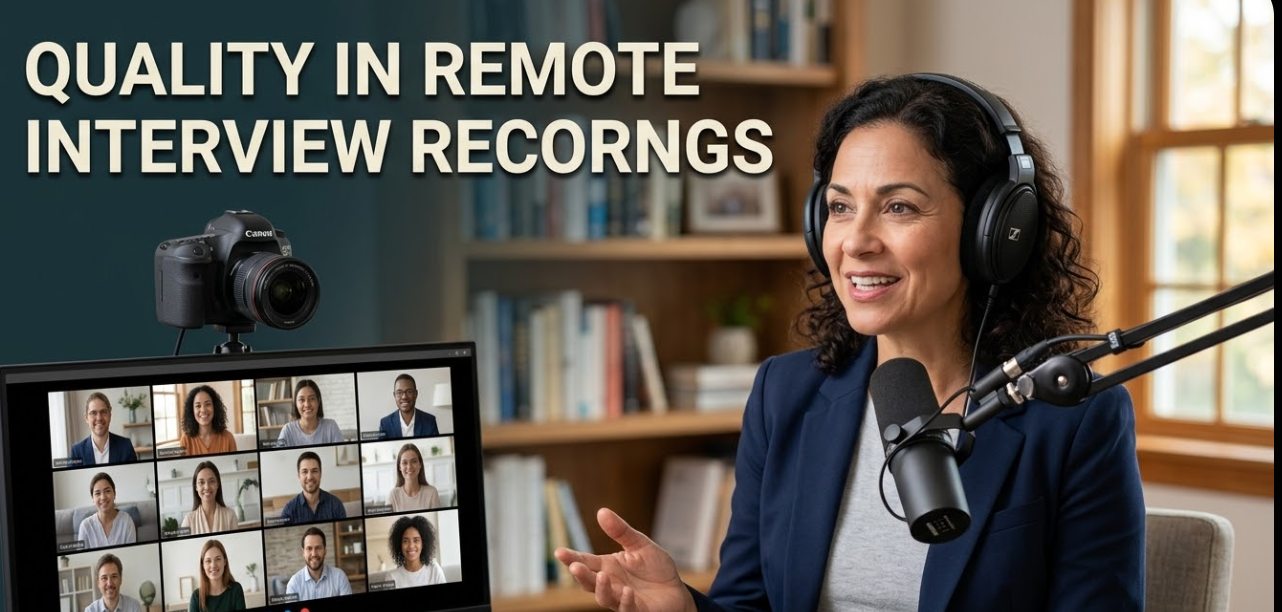
Remote interviews have become the new normal. Whether you’re a journalist, podcaster, HR professional, or content creator, you’ve probably struggled to improve voice quality in remote interview recordings at some point. Bad audio can ruin an otherwise great conversation. It makes transcription harder, frustrates listeners, and damages your professional image.
The good news? You don’t need a professional studio to sound great. With the right tools, techniques, and a bit of preparation, anyone can produce clean, clear, and crisp audio — even from a home office or spare bedroom.
This guide walks you through everything you need to know, from microphone selection to software settings, room acoustics to post-production editing. Let’s get started.
Why Voice Quality Matters More Than You Think
Poor audio quality doesn’t just sound bad — it actually affects how people perceive you.
Studies show that listeners trust speakers with clear, confident-sounding audio more than those with muddy or distorted recordings. In podcast interviews, viewers drop off within the first 60 seconds if the sound quality is poor. In HR interviews, candidates can feel uncomfortable or misunderstood due to choppy audio.
Here’s a quick breakdown of what bad voice quality costs you:
| Problem | Impact |
|---|---|
| Echo and reverb | Hard to follow conversations |
| Background noise | Distracting and unprofessional |
| Low volume | Forces listeners to strain |
| Clipping/distortion | Painful to hear, kills credibility |
| Muffled audio | Makes transcription nearly impossible |
Fixing these issues is not optional — it’s essential.
The Root Causes of Bad Audio in Remote Interviews
Before you can fix a problem, you need to know what’s causing it. Most audio issues in remote interviews fall into a few common categories.
Your Microphone Is Working Against You
The built-in microphone on your laptop or phone is designed for casual calls — not professional recordings. These mics pick up everything: your keyboard clicks, your breathing, the fan noise from your computer, and every sound in the room.
They also tend to place you too far from the audio source, which means your voice gets mixed with room noise before it even reaches the recording.
Your Room Is an Echo Chamber
Hard surfaces reflect sound. If your room has tile floors, bare walls, and a lot of open space, your voice bounces around before reaching the microphone. The result is a hollow, cave-like sound that no amount of post-processing can fully fix.
This is one of the most overlooked problems in remote interview recordings.
Your Internet Connection Is Unstable
A slow or inconsistent internet connection causes audio dropouts, robotic voices, and strange distortions. These artifacts are nearly impossible to remove in post-production.
Software Settings Are Misconfigured
Many recording and video conferencing tools have default settings that are not optimized for high-quality audio. Features like automatic gain control, noise suppression, and echo cancellation can actually degrade voice quality when used incorrectly.
Choosing the Right Microphone for Remote Interviews
Your microphone is the single most important piece of equipment you can invest in. Here’s how to choose wisely.
USB vs. XLR Microphones
USB microphones are plug-and-play. You connect them directly to your computer and they work immediately. They’re ideal for beginners and most remote interview scenarios.
XLR microphones require an audio interface to connect to your computer. They offer higher audio fidelity but come with added complexity and cost.
For most remote interviewers, a quality USB microphone is the sweet spot between performance and convenience.
Best Microphone Types for Voice Recording
| Microphone Type | Best For | Pickup Pattern |
|---|---|---|
| Cardioid Condenser | Podcasting, interviews | Front only |
| Dynamic | Noisy environments | Front only |
| Omnidirectional | Group recordings | All directions |
| Bidirectional (Figure-8) | Two-person interviews | Front and back |
For solo remote interviews, a cardioid condenser microphone is your best option. It captures your voice clearly while rejecting sounds coming from the sides and behind.
Microphone Placement Matters
Position your microphone about 6 to 10 inches from your mouth. Angle it slightly off-axis — meaning not pointing directly at your lips — to reduce harsh consonant sounds like “p” and “b.” These are called plosives, and they create unpleasant popping sounds in recordings.
Use a pop filter or foam windscreen to further reduce plosive impact. It’s a small, inexpensive addition that makes a big difference.
Setting Up Your Recording Space for Better Audio
You don’t need a soundproofed studio. You just need to be smart about your environment.
Pick the Right Room
Smaller rooms tend to sound better than large, open ones. A room with soft furnishings — like a bedroom with carpets, curtains, and a bed — naturally absorbs sound and reduces echo.
Avoid recording in:
- Kitchens (hard surfaces everywhere)
- Large open living rooms
- Rooms near busy streets or appliances
- Bathrooms (terrible reverb)
Cheap and Effective Acoustic Treatment
You don’t need to spend thousands on foam panels. Here are some DIY solutions that actually work:
- Hang thick blankets or moving blankets on walls behind and around your recording area
- Record in a closet full of clothes — the fabric absorbs sound beautifully
- Place a thick rug under your desk to reduce floor reflections
- Use a bookshelf filled with books as a natural diffuser behind you
- Drape a blanket over your head and microphone for a quick portable booth
These methods won’t make your room sound like a professional studio, but they will dramatically reduce echo and background noise.
The Reflection Filter Option
A portable reflection filter (also called a vocal shield) mounts directly to your microphone stand. It surrounds the back of the mic and absorbs sound coming from behind. This is a great middle-ground option if you want something more structured than blankets but less expensive than full acoustic panels.
Software Tools to Improve Voice Quality in Remote Interview Recordings
Hardware matters, but software can do a lot of heavy lifting too.
Real-Time Noise Removal Tools
These tools work while you’re recording or in a live call to filter out background noise:
- NVIDIA RTX Voice / NVIDIA Broadcast — Uses AI to remove background noise in real time. Works exceptionally well for removing fan noise, keyboard clicks, and ambient sounds.
- Krisp — A software-based noise cancellation app that works with any microphone and any video platform. Highly effective even on budget setups.
- Cleanfeed — A browser-based tool designed for remote audio recording. It transmits lossless audio over the internet, making it ideal for podcast interviews.
Recording Platforms with Better Audio
Not all video conferencing tools are created equal when it comes to audio quality. Here’s how the major ones compare:
| Platform | Max Audio Quality | Local Recording | Separate Tracks |
|---|---|---|---|
| Zoom | 48kHz | Yes | With add-on |
| Riverside.fm | 48kHz WAV | Yes (local) | Yes |
| Squadcast | 48kHz WAV | Yes (local) | Yes |
| Zencastr | 44.1kHz WAV | Yes (local) | Yes |
| Google Meet | Compressed | No | No |
| Microsoft Teams | Compressed | Limited | No |
For professional-quality remote interview recordings, Riverside.fm and Squadcast are the top choices. They record each participant’s audio locally on their own device, then upload the high-quality file after the session. This eliminates the biggest problem with internet-based recordings: connection quality.
Post-Production Tools to Polish Your Audio
Even a great recording can benefit from post-production cleanup. Here are the best tools to improve voice quality after recording:
Adobe Audition — A professional-grade audio editor with powerful noise reduction, EQ, compression, and de-essing tools. Ideal if you edit audio regularly.
Audacity — Free and open-source. It includes noise reduction filters, compression, and equalization. Great for beginners.
descript — An all-in-one tool that transcribes, edits, and lets you remove filler words. Its “Studio Sound” feature can dramatically improve voice quality with one click.
iZotope RX — The gold standard for audio restoration. It can remove background noise, fix clipping, reduce room reverb, and repair all kinds of audio damage. Used by broadcast professionals worldwide.
Step-by-Step: How to Improve Voice Quality Before You Hit Record
Here’s a practical checklist you can follow before every remote interview session.
Step 1 — Do a Full Equipment Check
- Is your microphone plugged in and selected as the input device?
- Is your headphone volume at a comfortable level?
- Is your microphone positioned correctly (6–10 inches, slightly off-axis)?
- Is your pop filter in place?
Step 2 — Test Your Room
- Clap once and listen for echo. If you hear a noticeable reverb tail, add more soft materials to the room.
- Record a 30-second voice memo and play it back. Does it sound hollow or echoey? Fix this before your session.
Step 3 — Configure Your Software Settings
In your recording platform or video call software:
- Disable automatic gain control (AGC) — This feature automatically adjusts your mic volume, which often causes uneven levels.
- Disable echo cancellation if you’re using headphones (it’s only necessary when using speakers).
- Set your sample rate to 44.1kHz or 48kHz for high-quality audio.
- Enable noise suppression if you’re in a noisy environment, but test it first — aggressive noise suppression can make your voice sound robotic.
Step 4 — Check Your Internet Connection
- Use a wired Ethernet connection instead of Wi-Fi whenever possible.
- Close all unnecessary tabs, apps, and downloads before recording.
- Run a speed test at Speedtest.net to confirm your upload speed is at least 5 Mbps for smooth audio transmission.
Step 5 — Record a Test Session
Always do a 2-minute test recording before your actual interview. Listen back with headphones and catch any issues before they ruin your main session.
Getting Your Interview Guests to Sound Great Too
Your own audio might be perfect, but if your guest sounds terrible, the whole recording suffers. Here’s how to help them prepare.
Send a Simple Tech Guide Ahead of Time
Most guests aren’t audio engineers. Create a short, friendly PDF or message that covers:
- Use earbuds or headphones (not speakers)
- Find a quiet room
- Sit close to the microphone or use the phone’s front-facing mic
- Test their audio before the call
A little preparation goes a long way. You can even direct them to resources on your website — for example, check out Cryptonews21 for additional tips on optimizing your tech setup.
The Double-Ender Recording Method
This is a game-changer for podcast interviews and media recordings.
In a double-ender, both you and your guest record your own audio locally on your own devices, simultaneously. You each send your audio files after the session, and you combine them in post-production.
This method bypasses internet quality entirely. Each person captures their own voice in the best possible quality, regardless of their connection speed.
Tools like Riverside.fm and Squadcast automate this process, but you can also do it manually using any recording app.
Post-Production Techniques to Enhance Voice Quality
Even with great gear and a well-treated room, some cleanup is usually needed in post-production. Here’s what to focus on.
Noise Reduction
Run a noise reduction filter to remove constant background sounds like hum, hiss, or fan noise. In Audacity:
- Find a section of your recording with only background noise (no speech).
- Select that section and capture the noise profile.
- Apply the noise reduction to the full track.
Be careful not to overdo it. Heavy noise reduction causes a “watery” or robotic effect.
Equalization (EQ)
EQ lets you boost or cut specific frequency ranges in your audio.
For voice recordings:
- Cut frequencies below 80Hz — This removes low-end rumble and handling noise.
- Boost slightly around 3–5kHz — This adds presence and clarity to the voice.
- Cut around 200–400Hz if needed — This reduces muddiness.
Compression
A compressor evens out the volume of your recording. Loud parts get quieter and quiet parts get louder. This makes your voice sound more consistent and easier to listen to over time.
Most DAWs and editing tools include a built-in compressor. Start with a gentle ratio of 2:1 to 4:1 for natural-sounding results.
De-essing
De-essing reduces harsh “s” and “sh” sounds that can sound piercing in recordings. This is especially important when recording with condenser microphones, which are very sensitive to high frequencies.
Limiting and Normalization
Apply a limiter as the final step to prevent any accidental peaks from exceeding 0dBFS (the maximum digital level). Then normalize your audio to a consistent loudness level, typically around -16 LUFS for podcasts or -23 LUFS for broadcast.
Common Mistakes That Kill Your Audio Quality
Even experienced recorders fall into these traps. Avoid them.
| Mistake | Why It Hurts | Easy Fix |
|---|---|---|
| Recording with laptop mic | Too far, picks up everything | Get a dedicated USB mic |
| Sitting in a bare room | Echo ruins clarity | Add soft furnishings |
| Using Wi-Fi for recording | Dropouts and compression | Switch to wired Ethernet |
| Skipping the test recording | Problems go unnoticed | Always do a 2-min test |
| Applying too much noise reduction | Robotic voice effect | Use it gently |
| Mic too close to mouth | Plosives and distortion | Back off 6–10 inches |
| Wearing noisy clothing | Rustling picked up by mic | Wear soft, quiet fabric |
Quick Reference: The Ultimate Audio Setup for Remote Interviews
Here’s a tiered guide based on budget:
Budget Setup (Under $100)
- Microphone: Audio-Technica ATR2100x USB ($79)
- Acoustic treatment: Blankets and closet recording
- Software: Audacity (free) + Krisp free tier
Mid-Range Setup ($100–$300)
- Microphone: Blue Yeti or Rode NT-USB Mini ($130–$170)
- Mic stand + pop filter ($20–$40)
- Acoustic panels or reflection filter ($50–$100)
- Software: descript or Hindenburg Journalist
Professional Setup ($300+)
- Microphone: Shure SM7B + Focusrite Scarlett interface ($400–$500 total)
- Full acoustic panel treatment
- iZotope RX Elements for audio restoration
- Riverside.fm for lossless remote recording
FAQs: Improve Voice Quality in Remote Interview Recordings
Q1: What is the easiest way to improve voice quality in remote interview recordings without spending money? Move to a smaller, softer room. Record in a closet with clothes around you. Use your phone’s voice memo app for a test, and listen back. These zero-cost changes can make a huge difference.
Q2: Do I need an expensive microphone to sound professional? Not necessarily. A mid-range USB microphone like the Audio-Technica ATR2100x or Rode NT-USB Mini can sound very professional with proper placement and room treatment. The room matters almost as much as the mic.
Q3: How do I stop my audio from sounding echoey in a remote interview? Add soft materials to your room — blankets, rugs, curtains, and filled bookshelves all help. Record in a smaller space. A closet full of clothes is surprisingly one of the best recording environments available.
Q4: What’s the best free software to clean up remote interview audio? Audacity is the best free option. It includes noise reduction, EQ, compression, and normalization tools. For real-time noise removal during calls, Krisp offers a free tier that works well.
Q5: Why does my voice sound robotic during video calls? This is usually caused by aggressive noise suppression or echo cancellation settings in your conferencing software, or by a weak internet connection causing compression artifacts. Disable automatic audio processing in your platform settings and use a wired internet connection.
Q6: Should I record in mono or stereo for remote interviews? For voice recordings, mono is almost always better. Stereo is useful for music or spatial audio, but for speech, mono keeps the file size smaller and sounds more natural on speakers and headphones.
Q7: What does LUFS mean and why does it matter? LUFS stands for Loudness Units relative to Full Scale. It’s a standardized measurement of perceived audio loudness. Podcasts should target around -16 LUFS, while broadcast standards often require -23 LUFS. Matching the right LUFS level ensures your audio sounds consistent with other content on the same platform.
Wrapping It All Up
There’s never been a better time to take your remote interview audio seriously. The tools are affordable, the knowledge is accessible, and the results speak for themselves — literally.
To improve voice quality in remote interview recordings, focus on three core areas: your microphone and its placement, your recording environment, and your software and post-production workflow. Each layer builds on the last. Great gear in a bad room still sounds bad. A good room with a poor microphone still limits you. But when all three areas are dialed in, the results are genuinely impressive.
Start small. Pick one upgrade from this guide and implement it today. Maybe it’s moving your recording setup to a smaller room. Maybe it’s downloading Krisp or trying Riverside.fm for your next session. Every improvement you make compounds over time.
Clear audio is a sign of respect — for your guests, your audience, and your craft. Now go make your next interview sound incredible.