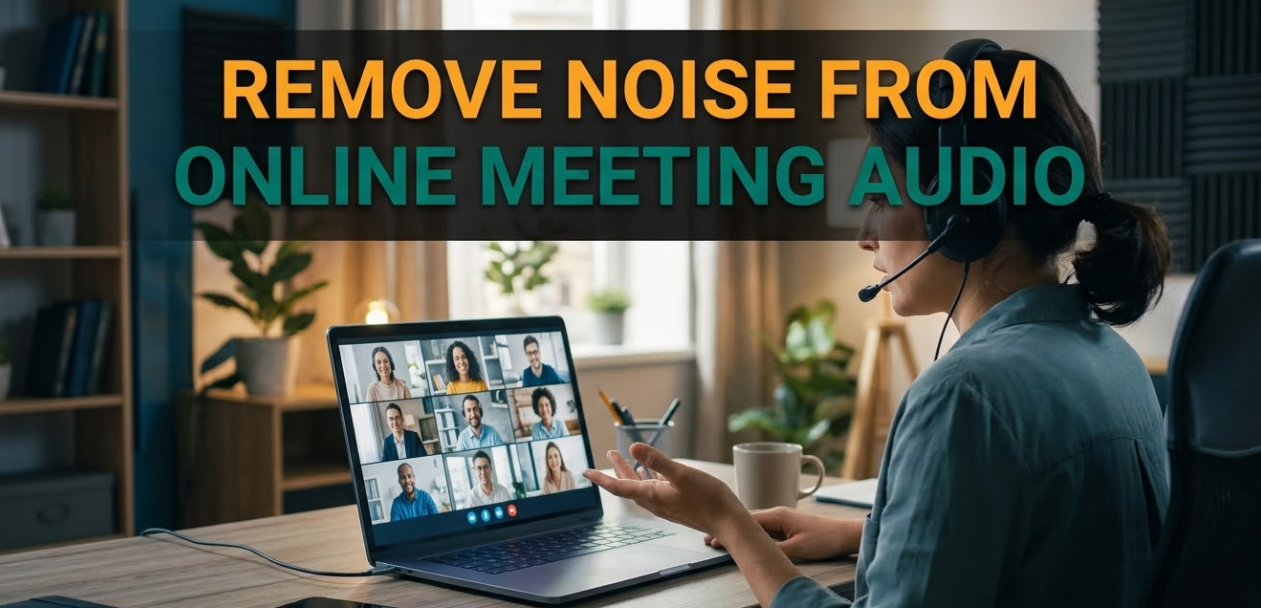
Online meetings are now part of everyday life. Whether you’re working from home, studying remotely, or catching up with a team, clear audio can make or break a call. If you’ve ever struggled with background noise ruining your focus, you already know how frustrating it is. Remove noise from online meeting audio is not just a technical fix — it’s a productivity necessity.
This guide walks you through everything you need to know. From why background noise is so damaging to the best tools and techniques for fixing it, you’ll leave with practical steps you can use today.
Why Background Noise Destroys Your Meetings
Bad audio isn’t just annoying. It has a real impact on how productive and professional your meetings are.
Studies show that people lose focus quickly when audio quality is poor. They miss important points. They ask others to repeat themselves. In some cases, they simply tune out.
The most common noise problems include background chatter, keyboard clatter, air conditioning hum, and echo. Each one chips away at the listener’s ability to concentrate.
The good news? All of them can be fixed or reduced with the right approach.
How Background Noise Actually Gets Into Your Audio
Before you can remove noise from online meeting audio, it helps to understand how it gets there in the first place.
Sound travels in waves. Your microphone picks up everything — your voice and everything around it. Most basic microphones have no way to separate the two.
There are two main causes of poor meeting audio:
Acoustic noise comes from the environment around you. This includes traffic outside, coworkers in the background, or your dog barking. It enters your microphone directly.
Electronic noise is caused by hardware issues. Low-quality microphones or poor audio drivers add a faint hiss or buzz to your recordings. This is sometimes called “white noise” or “static.”
Both types can be handled. You just need different strategies for each.
The Best Tools to Remove Noise From Online Meeting Audio
There are dozens of tools on the market. Some are built into your video conferencing app. Others are standalone software you run in the background. Here’s a breakdown of the top options:
Built-In Noise Suppression Features
Most major video platforms already offer some level of noise cancellation.
Zoom has a built-in noise suppression setting. You can find it under Audio Settings. It offers three levels: auto, low, medium, and high. The high setting works best in very noisy environments, though it can sometimes flatten your voice.
Microsoft Teams includes its own AI-powered noise suppression. It filters out sounds like paper rustling, fan noise, and keyboard clicks automatically.
Google Meet also offers noise cancellation. It’s currently available on desktop browsers and the mobile app.
These built-in tools are a great starting point. However, they may not be enough for loud or complex noise environments.
Third-Party Noise Removal Apps
For stronger results, consider dedicated software.
Krisp is one of the most popular choices. It works across all video call platforms by acting as a virtual microphone. It filters your audio before it reaches your app. The free version gives you a limited number of minutes per day. The paid version is unlimited.
NVIDIA RTX Voice uses AI to remove background noise in real time. It’s designed for NVIDIA graphics cards, so it may not work on all systems.
SteadyTune and NoiseGator are simpler tools. They use noise gates — a method of silencing your mic when your voice drops below a certain volume. This doesn’t remove noise exactly, but it prevents it from being heard between your sentences.
Adobe Podcast’s Enhance Speech is a free online tool. You upload an audio file, and it cleans it up using AI. It’s ideal for recorded meetings rather than live calls.
Hardware Solutions That Make a Big Difference
Software alone won’t always cut it. Sometimes the problem starts with your equipment.
Choosing the Right Microphone
A better microphone is often the single biggest improvement you can make.
Dynamic microphones are less sensitive. They pick up sound that’s close to them and ignore background noise better than most built-in laptop mics.
Cardioid condenser microphones are more sensitive and capture voice well, but they also pick up more background sound. They work best in quiet rooms.
USB microphones like the Blue Yeti or HyperX QuadCast are popular for home offices. They offer solid quality and often include built-in controls for gain and headphone monitoring.
Headsets with noise-canceling microphones are another excellent option. Brands like Jabra, Sennheiser, and Poly (formerly Plantronics) make professional-grade headsets specifically for call clarity.
Using a Pop Filter and Mic Stand
A pop filter reduces plosive sounds — the sharp bursts of air that happen when you say words like “p” or “b.” These can create unpleasant spikes in your audio.
A mic stand or boom arm positions your microphone correctly. Holding your mic or placing it flat on a desk creates vibration noise. A stand or arm keeps it stable and at the right angle.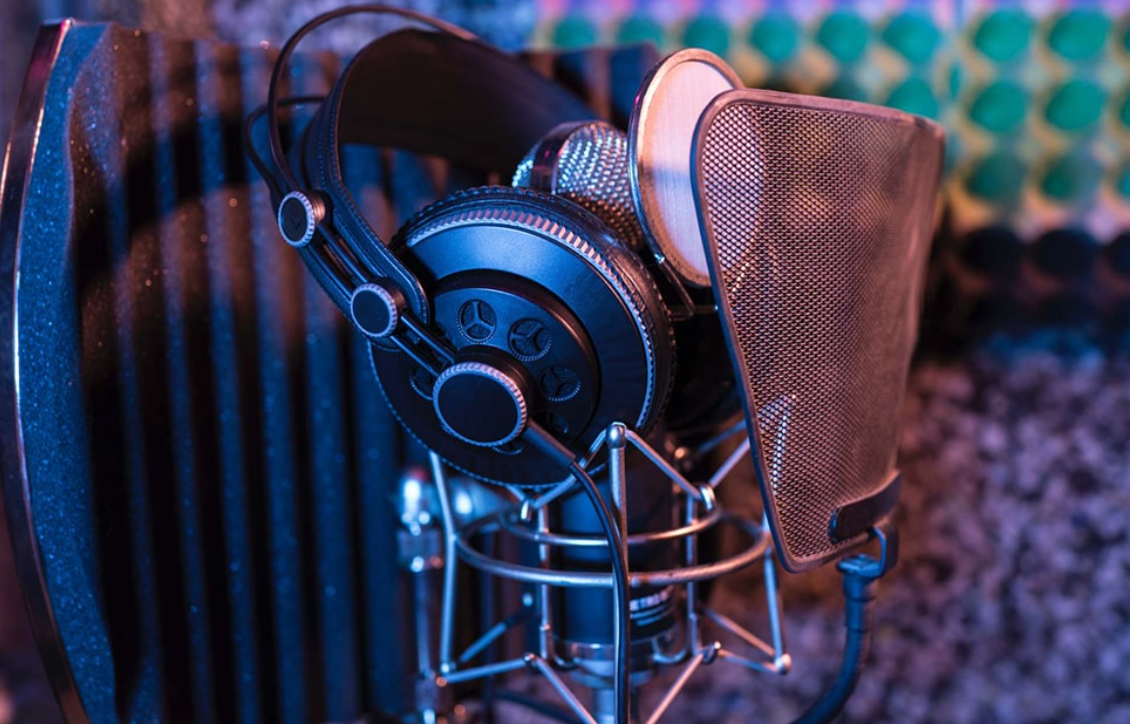
Room Setup Tips to Naturally Reduce Noise
Your physical environment plays a huge role in audio quality. Here are some easy ways to make your room quieter before the meeting even starts.
Soundproofing on a Budget
You don’t need professional soundproofing panels to make a difference.
Soft surfaces absorb sound. Rugs, curtains, couches, and bookshelves all help reduce echo and reverb. A bare room with hardwood floors and white walls will always sound worse than a furnished room.
Closets make great recording spots. Clothes absorb sound incredibly well. If you need dead-quiet audio, try taking your call from inside a walk-in closet.
Foam panels are inexpensive and easy to mount. Even placing a few behind you or beside your desk can noticeably reduce echo.
Dealing With Echo
Echo happens when your voice bounces off hard surfaces and comes back to your microphone. It’s one of the hardest types of noise to remove with software.
The best fix is acoustic treatment. If that’s not an option, try moving your desk away from walls and corners. Even a few inches can help.
You can also use a directional microphone and aim it away from the surfaces causing the most reflection.
Step-by-Step: How to Remove Noise From Online Meeting A
Following these five steps in order will solve the majority of audio problems for most people.
If you’re on calls every day, the investment in a paid tool pays for itself quickly. One bad call can cost you a client or leave a poor impression. For casual or occasional meetings, the built-in platform tools are usually enough.
Microphone Placement: A Small Change With a Big Result
One of the most overlooked tips is simply where you put your microphone.
Most people place their mic flat on their desk or keep it built into their laptop. Both are poor positions. A desk mic picks up vibrations and reflects sound off the surface. A laptop mic is often aimed at your chin or your hands, not your mouth.
Here’s how to position your microphone correctly:
- Place it roughly 6 to 12 inches from your mouth
- Angle it slightly off-center from your lips to avoid plosive sounds
- Use a boom arm or stand so it’s not resting on the desk
- Keep it away from vents, fans, or speakers
These small adjustments can dramatically reduce the amount of noise that gets picked up in the first place. Prevention is always easier than correction.
How AI Is Changing Online Meeting Audio Quality
Artificial intelligence has transformed noise removal. Older methods relied on noise gates and simple filters. They worked by detecting silence and blocking everything that fell below a threshold. The problem was they also cut out soft speech and created an unnatural, choppy sound.
Modern AI tools work differently. They analyze thousands of hours of speech and noise patterns. They learn what a human voice sounds like compared to background interference. Then they apply that knowledge in real time.
The result is much more natural-sounding audio. The voice stays smooth and clear even in noisy environments. AI tools can now isolate a voice from a crowded café, a running train, or a room full of other speakers.
Apps like Krisp, NVIDIA RTX Voice, and Zoom’s AI audio are all using this technology. It’s improving rapidly and becoming a standard feature in most business communication tools.
If you want to learn more about technology that makes remote work more productive, visit our tech tips section at cryptonews21.com.
Noise Canceling Headphones vs. Noise Canceling Microphones
These are two different things, and it’s easy to get them mixed up.
Noise-canceling headphones reduce the noise you hear. They use active noise cancellation (ANC) to block out background sound coming into your ears. This helps you focus on the meeting, but it doesn’t affect what others hear from you.
Noise-canceling microphones reduce the noise others hear from your side. They use beamforming technology or directional pickup patterns to focus on your voice and reject everything around it.
For the best experience, you want both. A quality headset from a brand like Jabra or Poly typically combines both in one device.
If you can only get one, prioritize the microphone side. What you hear matters, but what others hear from you is what affects your professional image.
Online Meeting Audio Settings You Should Always Check
Before every call, take 60 seconds to check these settings:
In Zoom
Go to Settings → Audio and make sure:
- Echo cancellation is turned on
- Suppress background noise is set to “High” or “Auto”
- “Automatically adjust microphone volume” is enabled for uneven environments
In Microsoft Teams
Go to Settings → Devices and:
- Select your preferred microphone from the dropdown
- Enable “Noise suppression” — set it to “High” for busy environments
- Test your mic using the Make a test call option
In Google Meet
Go to the three-dot menu during a call → Settings and:
- Turn on “Noise cancellation”
- Choose the correct microphone if you have more than one connected
These in-platform controls cost you nothing and take less than a minute. They should be your first stop before considering any additional tools.
Common Mistakes That Make Online Meeting Noise Worse
Even with good tools, some habits undermine your audio quality. Here are the ones to avoid:
Leaving your mic open when not speaking. Even small sounds add up. Use the mute button whenever you’re not actively talking.
Sitting next to your router or speakers. Electronic interference can create buzzing or hissing in your audio. Keep these devices at a distance from your microphone.
Using phone speakers on desktop calls. This creates feedback loops. Always use headphones or a dedicated speaker setup designed for calls.
Not testing before important meetings. Assume your setup needs to be checked every time. Cables get unplugged. Settings change. Software updates can reset your preferences.
Using a low-quality USB hub. Cheap hubs can introduce electrical interference. Plug your microphone or headset directly into your computer whenever possible.
For more tips on optimizing your remote setup, Wirecutter’s guide to microphones is a reliable external resource with hands-on tested recommendations.
Special Situations: Removing Noise From Recorded Meeting Audio
Sometimes the noise problem isn’t live — it’s in a recording you’ve already made.
Cleaning Up Recorded Audio With Free Tools
Audacity is a free, open-source audio editor. It includes a powerful Noise Reduction tool. Here’s how to use it:
- Open your audio file in Audacity
- Highlight a section of pure background noise (no speech)
- Go to Effect → Noise Reduction
- Click “Get Noise Profile”
- Select the entire audio file
- Run Noise Reduction again and apply
This tells Audacity what the background noise sounds like, then it removes it from the entire recording.
Adobe Podcast Enhance Speech
This is a free browser-based tool that uses AI to clean up audio files. You simply upload your recording and it processes it automatically. Results are usually excellent, especially for removing hiss, hum, and room noise.
These tools work well for meeting recordings, podcast files, or any audio you need to clean up after the fact.
Tips for Remote Workers in Loud Environments
Not everyone works from a peaceful home office. Many people take calls from shared spaces, co-working spots, cafés, or apartments with thin walls.
Here are some tactics that work specifically for noisy environments:
Use push-to-talk mode. Instead of keeping your mic open the whole time, only activate it when you’re speaking. Most apps support this as a keyboard shortcut.
Schedule calls during quieter times. If you have any control over timing, morning hours tend to be quieter in shared spaces.
Move to a corner or a quiet room. Distance from the source of noise matters. Even moving 20 feet can make a measurable difference.
Use bone conduction microphones. These pick up vibrations directly from your skull rather than from the air. They’re extremely effective at blocking background noise because they literally bypass the air where noise travels.
Let others know in advance. If you’re going to be in a noisy spot, send a message ahead of time. Participants will appreciate the heads up and may be more patient.
How to Test Your Audio Before a Meeting
Testing is one of the most important habits you can build. Here’s a quick checklist:
- Open your video app and go to audio settings
- Use the built-in mic test feature to hear a playback of your voice
- Test while simulating the actual conditions of your meeting — same room, same position, same background activity
- Listen for background hum, echo, or muffled sound
- Adjust noise suppression settings until playback sounds clean
- Do a short test call with a colleague if time allows
Testing takes about two minutes. It can save you from a major embarrassment during an important meeting.
FAQs: Remove Noise From Online Meeting Audio
Q: Can I remove background noise from online meeting audio for free? Yes. Most major platforms like Zoom, Teams, and Google Meet include free noise suppression features. Tools like NVIDIA RTX Voice and Adobe Podcast Enhance Speech are also free. You don’t have to spend money to get noticeably better results.
Q: What’s the best app to remove noise from online meetings? Krisp is widely considered one of the best dedicated tools. It works across all major platforms, uses AI for real-time noise removal, and offers a free tier for limited use. For users with NVIDIA GPUs, RTX Voice is a strong free alternative.
Q: Why does my voice sound robotic after enabling noise cancellation? This usually happens when the noise suppression setting is too aggressive. Reduce the suppression level from “High” to “Medium” or “Auto.” It may also be caused by your microphone gain being set too low.
Q: Does noise cancellation affect call quality? Light noise cancellation has minimal impact on voice quality. Very aggressive settings can sometimes flatten your voice or create a robotic effect. The key is finding the right balance for your environment.
Q: How do I remove noise from a recorded meeting audio file? Use Audacity’s Noise Reduction tool for manual editing. For a faster, automated solution, upload the file to Adobe Podcast Enhance Speech. Both tools are free and produce excellent results.
Q: Is a noise-canceling headset better than a standalone microphone? For most remote workers, a quality headset is more practical. It handles both input and output in one device. However, if audio quality is your top priority — for podcasting, recorded presentations, or professional calls — a dedicated USB microphone will generally produce better results.
Q: Does background noise cancellation work on mobile phones? Yes. Zoom, Teams, and Google Meet all offer noise suppression on their mobile apps. The performance may be slightly less powerful than on a desktop, but it still makes a significant improvement.
Q: Can multiple people on a call all use noise cancellation at the same time? Yes. Each person’s noise suppression runs independently on their own device. When everyone enables it, the overall call quality improves significantly.
Wrapping It All Up: Clean Audio Is a Professional Superpower
The ability to remove noise from online meeting audio is not just a technical skill. It’s a professional one. Clear audio signals that you’re prepared, organized, and respectful of other people’s time.
The good news is that you don’t need to spend a lot of money or have a technical background to get great results. Start with your platform’s built-in noise suppression. Add a free tool like Krisp if needed. Position your microphone correctly. Add a rug or curtain to reduce echo.
Each step adds up. Together, they can transform your calls from frustrating to effortless.
Clear audio builds trust. It keeps people engaged. And in a world where so much of our communication happens over a screen, it might just be the most underrated edge you can give yourself.