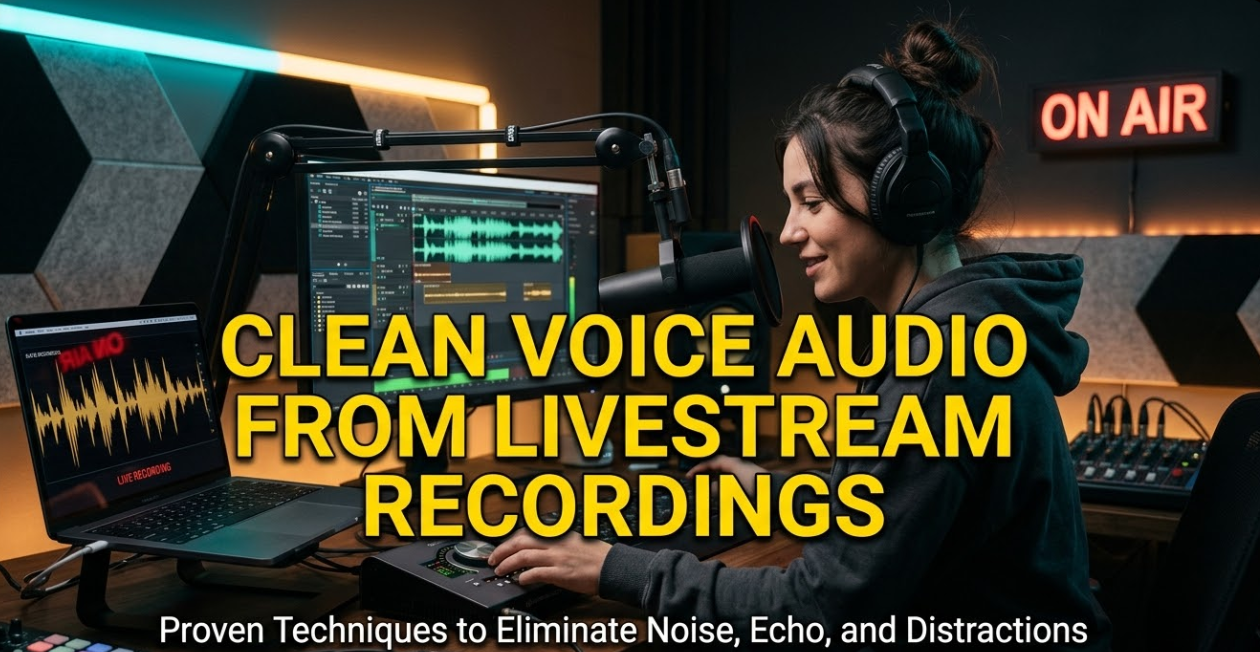
If you’ve ever watched a livestream recording and struggled to hear what the host was saying through all the noise, hiss, and echo — you already know why clean voice audio from livestream recordings matters so much. Poor audio quality kills engagement faster than any bad camera angle or lighting issue ever could. Whether you’re a content creator, podcaster, gamer, or educator, your audience needs to hear you clearly. The good news? You don’t need a professional studio to fix noisy, muffled, or echoing livestream audio. With the right tools and techniques, you can clean up your recordings and make your voice sound sharp, warm, and professional.
In this guide, you’ll learn exactly how to identify audio problems, choose the best tools, and apply proven methods to clean voice audio from livestream recordings — step by step.
Why Livestream Audio Is So Hard to Get Right
Livestreaming happens in real time. That means you’re dealing with room noise, internet compression, background sounds, and imperfect microphone setups — all at once. Unlike a studio recording that gets polished before release, a livestream captures everything raw.
When you go back to clean that audio in post, you’re often starting with a pretty messy file.
The Most Common Audio Problems in Livestream Recordings
Here are the issues that show up most often in unprocessed livestream recordings:
| Audio Problem | What It Sounds Like | Common Cause |
|---|---|---|
| Background noise | Hiss, hum, fan noise | Room acoustics, HVAC systems |
| Echo / reverb | Voice sounds hollow or “roomy” | Hard walls, no acoustic treatment |
| Clipping | Harsh crackling or distortion | Mic gain set too high |
| Plosives | “P” and “B” sounds pop loudly | No pop filter, mic too close |
| Compression artifacts | Robotic or watery voice | Low internet bitrate during stream |
| Breath noise | Loud inhaling between sentences | Sensitive mic, close proximity |
Understanding which problem you have is the first step. The fix for background hum is completely different from the fix for echo or clipping.
What “Cleaning” Audio Actually Means
The phrase “clean voice audio” sounds simple, but it involves several separate processes. Think of it like washing a car. You don’t just do one thing — you wash, rinse, dry, and then maybe wax.
Audio cleaning works the same way:
Noise reduction removes constant background sounds like fans, air conditioners, or electrical hum.
Noise gate cuts the audio signal completely when you’re not speaking, so silence sounds truly silent instead of buzzy.
Equalization (EQ) boosts or cuts specific frequency ranges to make your voice sound fuller, cleaner, or brighter.
Compression evens out the volume differences so your loud moments don’t overpower your quiet moments.
De-essing reduces harsh “S” and “T” sounds that can be painful to listen to.
De-reverb strips away echo and room reflections to make your voice sound more present.
Each of these tools plays a different role. Most people only need two or three of them to dramatically improve their audio.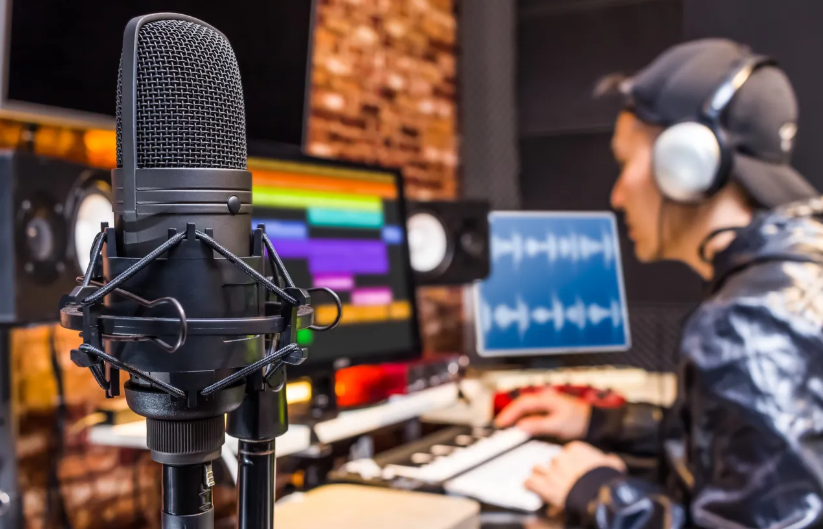
Best Tools to Clean Voice Audio From Livestream Recordings
There are free and paid options available across every platform. Here’s a comparison of the most widely used ones:
| Tool | Platform | Price | Best For | Ease of Use |
|---|---|---|---|---|
| Audacity | Windows, Mac, Linux | Free | Beginners, basic cleanup | ★★★★☆ |
| Adobe Audition | Windows, Mac | Paid (subscription) | Professionals, advanced repair | ★★★☆☆ |
| iZotope RX | Windows, Mac | Paid (various tiers) | Deep repair, complex problems | ★★☆☆☆ |
| NVIDIA RTX Voice | Windows (RTX GPUs) | Free | Real-time AI noise removal | ★★★★★ |
| Krisp | Windows, Mac | Free/Paid | Real-time mic cleanup | ★★★★★ |
| Reaper + Plugins | Windows, Mac | Low-cost | Flexible, powerful | ★★★☆☆ |
| Descript | Windows, Mac | Free/Paid | Easy cleanup + transcription | ★★★★☆ |
| Adobe Podcast (Enhance) | Web browser | Free (beta) | One-click AI cleanup | ★★★★★ |
For most people just starting out, Audacity (free) or Adobe Podcast Enhance (free, browser-based) will handle 80% of common problems without any learning curve.
Step-by-Step: How to Clean Livestream Voice Audio in Audacity
Audacity is the most accessible starting point for cleaning voice audio from livestream recordings. Here’s exactly how to do it.
Step 1 — Import Your Recording
Open Audacity and go to File > Import > Audio. Select your livestream recording file. Common formats like MP4, MP3, WAV, and OGG all work. If your recording is an MP4 video, you may need to extract the audio first using a tool like HandBrake or VLC.
Step 2 — Listen and Identify the Problems
Before touching anything, play the file back. Listen for:
- Constant background noise (hiss or hum)
- Loud pops on certain words
- Echo or reverb
- Volume jumps between different parts
Mark problem areas using Ctrl+B to add labels. This helps you stay organized.
Step 3 — Apply Noise Reduction
This is the most important step for most livestream recordings.
- Find a section of audio where you’re not speaking — just pure background noise. Even 0.5 seconds works.
- Select that section.
- Go to Effect > Noise Reduction.
- Click “Get Noise Profile.”
- Now select the entire audio track (Ctrl+A).
- Go back to Effect > Noise Reduction.
- Set Noise Reduction to 12–18 dB, Sensitivity to 6, and Frequency Smoothing to 3.
- Click OK.
Play it back. You should hear a significant reduction in background noise. If the voice sounds too “watery” or robotic, undo and lower the Noise Reduction dB.
Step 4 — Apply a High-Pass Filter
Human voices don’t live in the very low frequencies. Deep rumble and low-end noise can make your voice sound muddy.
- Select the entire track.
- Go to Effect > Filter Curve EQ or use the High-Pass Filter option.
- Set the cutoff to around 80 Hz (sometimes up to 120 Hz depending on the voice).
- Apply.
This removes low-frequency rumble without affecting your voice quality.
Step 5 — Compress the Audio
Go to Effect > Compressor. Use these starting settings:
- Threshold: -18 dB
- Ratio: 3:1
- Attack: 0.20 ms
- Release: 1.0 s
- Make-up gain: checked
Click OK. This evens out volume differences and makes the overall voice more consistent.
Step 6 — Normalize the Volume
Go to Effect > Normalize and set the peak amplitude to -1.0 dB. This brings the overall volume up to a good listening level without distorting.
Step 7 — Export Your Cleaned Audio
Go to File > Export > Export as MP3 (or WAV for highest quality). Choose your quality settings and save.
Using AI-Powered Tools for Faster Results
AI-based audio cleaning has become incredibly accurate and fast in recent years. These tools are especially helpful when you have a lot of recordings to process or when the damage is complex.
Adobe Podcast Enhance
This is a free web-based tool from Adobe. You upload your audio file, and the AI automatically removes background noise and makes your voice sound like it was recorded in a proper studio. It takes about 30–60 seconds per file.
Go to Adobe Podcast and try it on one of your worst recordings. The before/after difference is often shocking.
iZotope RX — The Professional Choice
iZotope RX is the gold standard for audio repair in the film, podcast, and music industries. It includes:
- Voice De-noise — Smart AI noise removal
- De-reverb — Strips out echo and room reflections
- Spectral Repair — Visually removes specific sounds
- Mouth De-click — Removes lip smacks and mouth sounds
- Dialogue Isolation — Separates voice from background
The learning curve is steeper than Audacity, but the results are significantly better for heavily damaged audio. Their RX Elements version starts at around $99 and handles most common use cases.
NVIDIA RTX Voice / RTX Broadcast
If you have an NVIDIA RTX graphics card, this free tool runs in real time while you stream. It uses AI to remove background noise from your microphone feed before it ever hits your recording. It works especially well for fan noise, typing sounds, and barking dogs.
How to Reduce Echo and Reverb in Livestream Recordings
Echo is one of the toughest audio problems to fix after the fact. Prevention is always better, but if your recording already has reverb, here’s what to do.
Prevention First — Treat Your Room
Before your next stream:
- Hang blankets or curtains on hard walls
- Record near a bookshelf filled with books
- Use a reflection filter behind your microphone
- Move away from large empty walls
These simple changes reduce reverb before it enters your recording, which is always better than trying to remove it later.
Fixing Echo After Recording
If the reverb is already baked in, use iZotope RX’s De-reverb module or the free Reafir plugin inside Reaper. Both let you profile the room sound and reduce it. Results vary depending on how much reverb is present — mild reverb cleans up nicely, but heavy echo can still leave some artifacts.
Adobe Podcast Enhance also handles light reverb automatically during its AI processing.
Microphone Tips to Get Cleaner Audio at the Source
The best way to clean voice audio from livestream recordings is to capture it cleanly in the first place. These microphone tips will save you hours of editing time.
Mic Placement Matters More Than the Mic
Position your microphone 4 to 8 inches from your mouth, slightly to the side rather than directly in front. This reduces plosive sounds (the “P” and “B” pops) and avoids picking up too much breath noise.
Use a Pop Filter
A pop filter is a simple screen that sits between your mouth and the microphone. It breaks up the air blasts from plosive consonants. You can buy one for under $10 or make one from a wire hanger and pantyhose.
Set Your Gain Correctly
Your audio input level should peak around -12 to -6 dB during normal speaking. Anything that pushes into the red zone will clip and distort — and clipping is nearly impossible to repair in post.
Use a Dynamic Mic in Noisy Environments
Dynamic microphones are naturally less sensitive than condenser mics. If you’re streaming from a noisy room, a dynamic mic like the Audio-Technica ATR2100x or Shure SM7B will reject far more room noise than a typical condenser mic.
Audio Settings to Use During Your Livestream
Cleaning audio after the fact is easier when your livestream software is configured properly from the start.
| Setting | Recommended Value | Why It Matters |
|---|---|---|
| Sample Rate | 44.1 kHz or 48 kHz | Standard quality for voice |
| Bit Depth | 16-bit minimum (24-bit preferred) | More headroom for editing |
| Bitrate (streaming) | 128–320 kbps for audio | Prevents compression artifacts |
| Noise Gate Threshold | -40 to -50 dB | Cuts background when silent |
| Input Gain | Peak at -12 to -6 dB | Prevents clipping |
In OBS Studio, go to Audio Settings and make sure your desktop audio and microphone are set to the correct devices. Add a Noise Suppression filter to your microphone and try both the RNNoise (AI-based) and Speex options to see which works best with your setup.
Workflow Comparison: Manual vs AI Cleaning
Not sure whether to clean your audio manually or let AI handle it? Here’s a quick comparison:
| Factor | Manual (Audacity/Reaper) | AI Tools (Adobe, iZotope RX) |
|---|---|---|
| Cost | Free | Free to expensive |
| Speed | Slow | Very fast |
| Learning Curve | Medium | Low |
| Control | Full control | Limited |
| Complex repairs | Possible but difficult | Easier |
| Best for | Learning, fine-tuning | Quick fixes, batch processing |
For most creators publishing regular content, a hybrid approach works best. Use AI tools for fast cleanup and manual tools for anything that still needs attention.
Batch Processing Multiple Recordings
If you archive your livestreams and want to clean multiple recordings at once, batch processing saves massive amounts of time.
Audacity’s Macro Tool (under Tools > Macros) lets you record a chain of effects and apply them to an entire folder of files with one click. Set up your noise reduction, EQ, compression, and normalization as a macro, then run it across all your files overnight.
Adobe Audition’s Batch Process feature works similarly but with a more visual interface and better processing power.
iZotope RX 10 also supports batch processing with its Command Line Interface, which is ideal for creators with large back catalogues.
For more content creation tools and tips, check out Cryptonews21 — a go-to resource for digital creators exploring new technologies and platforms.
Checklist: Before You Publish Your Cleaned Livestream Recording
Run through this checklist after cleaning your audio to make sure everything sounds right:
- Background noise is at a comfortable low level (not completely silent unless gated)
- Voice sounds natural, not “watery” or robotic from over-processing
- No harsh “S” or “T” sounds
- Volume is consistent throughout the recording
- No audible pops or clicks
- The audio doesn’t clip (no red marks in your editor)
- Export settings match your platform’s recommendations
Platform-Specific Audio Requirements
Different platforms want different audio formats and bitrates. Here’s what to aim for when exporting your cleaned livestream recording:
| Platform | Recommended Format | Audio Bitrate | Sample Rate |
|---|---|---|---|
| YouTube | AAC or MP3 | 320 kbps | 48 kHz |
| Twitch VODs | AAC | 160 kbps | 44.1 kHz |
| Spotify Podcasts | MP3 or WAV | 192 kbps+ | 44.1 kHz |
| Apple Podcasts | MP3 or AAC | 128–192 kbps | 44.1 kHz |
| TikTok / Reels | AAC | 128 kbps | 44.1 kHz |
| Vimeo | AAC | 320 kbps | 48 kHz |
Always export at the highest quality and let the platform compress it. Never upload a file that’s already heavily compressed — double compression makes audio quality noticeably worse.
FAQs About Cleaning Voice Audio From Livestream Recordings
Q: Can I fix completely distorted or clipped audio?
A: Severe clipping is very difficult to repair. iZotope RX has a “Clip Gain” tool that can recover mild clipping, but if the waveform is heavily flat-topped throughout, the damage is usually permanent. Prevention — setting your gain correctly — is the only real solution.
Q: How much noise reduction is too much?
A: When you apply too much noise reduction, voices start sounding “watery,” hollow, or robotic. A good rule of thumb is to use the lowest amount of noise reduction that still makes the background tolerable. Aim for noise reduction values between 10–18 dB in Audacity. If you go higher, watch for artifacts.
Q: Does cleaning audio take a long time?
A: It depends on the tool. Manual cleanup in Audacity for a one-hour recording might take 30–60 minutes. AI tools like Adobe Podcast Enhance can clean the same file in under two minutes. Once you set up a macro or batch process workflow, you can save significant time.
Q: What’s the best free tool to clean voice audio from livestream recordings?
A: For offline editing, Audacity is the best free option. For a one-click web-based solution, Adobe Podcast Enhance (free in beta) produces excellent results with no experience required.
Q: Can I clean audio directly in OBS or Streamlabs?
A: Yes, both platforms offer real-time audio filters including noise suppression, noise gate, and compression. These won’t replace dedicated post-processing tools but can significantly improve your audio quality before it hits your recording.
Q: Why does my voice sound muffled after cleaning?
A: Muffled audio after cleanup is usually caused by over-aggressive noise reduction or a high-pass filter that’s cutting too high in frequency. Try rolling back the noise reduction intensity, or check if your EQ is accidentally cutting mid-range frequencies (around 2–5 kHz) where voice presence and clarity live.
Q: Is it possible to remove music or background voices from a livestream recording?
A: Separating music or other voices from your recording is very difficult. iZotope RX’s Dialogue Isolation module is the best available tool for this, but results depend heavily on how mixed the signals are. AI-based tools like Lalal.ai can also separate voice from music with decent accuracy.
Q: What format should I save my cleaned audio in?
A: Save an uncompressed master copy in WAV (24-bit, 48 kHz) format. Then export a compressed version in MP3 or AAC for upload. This way you always have a clean master to re-export from if platform requirements change.
Conclusion
Getting clean voice audio from livestream recordings doesn’t require expensive equipment or years of audio engineering experience. It just takes the right approach. Start by understanding what’s wrong with your audio. Then choose a tool that fits your skill level and budget. Apply noise reduction, EQ, compression, and normalization in the right order. And whenever possible, fix problems at the source by treating your room, positioning your mic correctly, and setting your gain properly before you go live.
Whether you use a free tool like Audacity, a browser-based AI tool like Adobe Podcast Enhance, or a professional suite like iZotope RX, the goal is always the same — making sure every word you say comes through clearly and confidently.
Your audience came to hear you. Make sure they actually can. For even more tools and resources to level up your digital content workflow, explore what’s available at Adobe’s audio resources to deepen your understanding of professional audio repair techniques.