If you’ve ever tried to record a podcast in a busy coffee shop, take a video call near a highway, or extract a clean voiceover from a noisy clip — you know the pain. Background noise ruins perfectly good audio. It makes speech hard to understand, sounds unprofessional, and can even make listeners click away.
The good news? It’s possible to isolate speech from background noise using several smart techniques. Whether you’re a content creator, student, journalist, podcaster, or just someone who wants cleaner audio, this guide will walk you through everything — step by step.
From free browser tools to advanced audio software, you’ll find practical methods that actually work. Let’s dive in.
What Does It Mean to Isolate Speech From Background Noise?
Before jumping into the how-to, it’s worth understanding what’s actually happening when you isolate speech.
Every audio recording is a mix of different sound frequencies. Human voices typically sit in the 300 Hz to 3,000 Hz range. Background noise — fans, traffic, crowd chatter, wind — can overlap with those same frequencies, making it messy.
Isolating speech means separating those voice frequencies from the unwanted background sounds. Think of it like carefully picking one colored thread out of a tangled ball of yarn. The process can be done manually or with the help of AI.
5 Proven Methods to Isolate Speech From Background Noise
There’s no one-size-fits-all solution. Different situations call for different tools. Here are the five most effective approaches.
Method 1 — AI-Powered Speech Isolation Tools (Easiest Option)
AI tools have completely changed the game. They can isolate speech from background noise automatically in seconds, with no technical knowledge required.
One of the most popular options is VocalRemoverX, which uses machine learning to separate vocals from background sounds with impressive accuracy. It works directly in your browser — no software to install.
How it works:
- Upload your audio or video file.
- The AI analyzes the audio and separates speech from background noise.
- Download the clean vocal track.
The whole process takes less than a minute for most files.
Other AI tools worth trying:
- Adobe Podcast Enhance — Free, browser-based, excellent results for voice recordings.
- Krisp — Works in real time, great for Zoom calls and live recordings.
- NVIDIA RTX Voice — Perfect if you have an NVIDIA GPU; reduces noise live.
AI tools are best for people who want fast, clean results without learning audio editing. The tradeoff is that very heavy noise (like a crowded stadium) may still leave some artifacts.
Method 2 — Noise Reduction in Audacity (Free Desktop Software)
Audacity is a free, open-source audio editor that has a built-in noise reduction tool. It’s been around for years and works surprisingly well.
Step-by-step process:
Step 1 — Find a “noise sample.” This is a short section of your recording where only the background noise plays — no voice. Usually, this is at the very beginning or end of the file.
Step 2 — Select the noise sample. Click and drag to highlight 0.5 to 2 seconds of pure background noise.
Step 3 — Get the noise profile. Go to Effect → Noise Reduction → Get Noise Profile. Audacity now “memorizes” what the background noise sounds like.
Step 4 — Select the full recording. Press Ctrl + A (or Cmd + A on Mac) to select everything.
Step 5 — Apply noise reduction. Go back to Effect → Noise Reduction. Set the reduction to around 12 dB. Click OK.
Step 6 — Listen and adjust. Play the result. If voices sound robotic or “watery,” reduce the dB setting slightly.
Audacity’s method works great for consistent background noise like fans, air conditioners, or hum. It struggles with irregular noise like crowd chatter.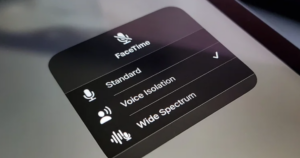
Method 3 — Using a Noise Gate in a DAW
A noise gate is an audio plugin that automatically mutes your audio when the volume drops below a certain level. This is especially effective for speech because speech is louder than most background noise.
Popular DAWs (Digital Audio Workstations) that have noise gates include:
- GarageBand (free for Mac)
- Logic Pro X
- Adobe Audition
- Reaper (budget-friendly)
How noise gates work:
Imagine a gate on a fence. When someone (the speaker) approaches loudly, the gate swings open and lets the sound through. When the speaker stops talking and only the quiet background noise remains, the gate closes.
You set a threshold — the volume level where the gate opens or closes. Speech stays above the threshold, so it passes through. Background noise sits below it, so it gets cut.
This method works best for recordings where the voice is clearly louder than the noise. It won’t help if the background noise is nearly as loud as the speaker.
Method 4 — Spectral Repair and Editing
This is the most precise method — and the most time-consuming. Spectral editing lets you see your audio as a visual map, where different colors represent different frequencies and volumes.
Tools like iZotope RX (the industry standard) let you literally “paint over” unwanted sounds and erase them.
When to use spectral editing:
- Removing a single loud noise (a car horn, a cough, a phone ring) from a recording.
- Cleaning up audio where AI and noise gates fall short.
- Restoring old or damaged recordings.
iZotope RX has features like:
- Spectral Repair — Fills in gaps where you’ve deleted audio so it sounds natural.
- Dialogue Isolation — A dedicated module that separates speech from background using AI.
- De-Reverb — Removes echoey room sound.
The downside? iZotope RX is expensive and has a steep learning curve. But for professional audio work, nothing beats it.
According to iZotope’s documentation, spectral repair can recover audio that was previously considered unusable.
Method 5 — Using the Right Microphone (Prevention First)
Sometimes the best way to isolate speech from background noise is to prevent the noise from being recorded in the first place.
Directional microphones only pick up sound from one specific direction — right in front of them. They reject noise coming from the sides and behind the mic.
Types of directional mics:
| Microphone type | Pickup pattern | Best use case |
|---|---|---|
| Cardioid | Front-facing | Podcasting, voiceovers |
| Supercardioid | Narrow front | Live performance, film |
| Hypercardioid | Very narrow | Crowded environments |
| Shotgun | Ultra-directional | Film sets, outdoor video |
| Lavalier (lav) | Omni (close to mouth) | Interviews, news |
A lavalier mic clipped to a shirt collar is just a few inches from the speaker’s mouth. That closeness means the voice is much louder than any background noise on the recording — giving you a natural isolation effect before any editing begins.
How to Isolate Speech in Real-Time (For Calls and Streaming)
Sometimes you need to clean up audio live, not after the fact. These tools handle that in real time.
Real-Time Speech Isolation Tools
Krisp Krisp is a desktop app that works as a virtual microphone. It plugs into Zoom, Teams, Google Meet, Discord, and more. It cancels background noise on both your end and the caller’s end.
NVIDIA RTX Voice / Broadcast This works with NVIDIA RTX graphics cards. It uses AI acceleration directly on the GPU to strip background noise in real time. Great for streamers and gamers.
Discord’s Built-In Suppression If you use Discord, go to Settings → Voice & Video → Noise Suppression. Powered by Krisp, it runs automatically during calls.
Microsoft Teams Noise Suppression Teams has a built-in noise suppressor under Settings → Devices → Noise Suppression. Set it to High for maximum effect.
The Science Behind How AI Isolates Speech
You might wonder — how does AI actually separate a voice from background noise?
Modern AI tools use something called a deep neural network. Here’s a simple way to think about it:
The AI was trained on thousands of hours of audio. It listened to millions of examples of clean speech alongside noisy speech. Over time, it learned what a human voice “looks like” in terms of its frequency patterns.
When you give the AI your noisy recording, it compares the sound to everything it has learned. It then predicts which parts of the audio are speech and which parts are noise — and separates them.
This is sometimes called source separation. The most advanced version of this is called Music Source Separation (MSS), which can split audio into individual instruments and vocals, not just speech vs. noise.
Common Types of Background Noise and How to Handle Each One
Not all background noise is the same. Different types of noise respond better to different methods.
Consistent Noise (Fans, AC, Computer Hum)
This is the easiest type to remove. Because the noise stays at the same volume and frequency, tools can identify it and filter it out cleanly.
Best methods: Audacity noise reduction, EQ high-pass filter, AI tools.
Irregular Noise (People Talking, Traffic, Wind)
This is harder because the noise changes constantly. AI tools handle this best because they can adapt to changing noise patterns in real time.
Best methods: AI isolation tools (Krisp, Adobe Podcast Enhance, VocalRemoverX).
Impulse Noise (Door Slam, Cough, Phone Ring)
These are short, sharp bursts of sound. They happen once and don’t repeat.
Best methods: Spectral editing in iZotope RX, manual cut-and-repair in Audacity.
Room Reverb and Echo
This isn’t exactly “noise” — it’s the sound bouncing off walls. But it still makes speech harder to understand.
Best methods: iZotope RX De-Reverb, recording in a soft, furnished room, acoustic foam panels.
Step-by-Step: How to Isolate Speech Using Adobe Podcast Enhance (Free)
Adobe’s free tool is one of the most impressive and beginner-friendly ways to isolate speech from background noise today. Here’s how to use it.
Step 1 — Go to podcast.adobe.com/enhance.
Step 2 — Click Enhance Speech and upload your audio file. Supported formats include MP3, WAV, M4A, and MP4.
Step 3 — Adobe’s AI processes the file. This usually takes 30 to 60 seconds.
Step 4 — Use the before/after toggle to hear the difference.
Step 5 — Download the cleaned file.
That’s it. No account required. No software to install. The results are often studio-quality — especially for voice recordings with consistent background hum or room noise.
Pro Tips to Get Even Cleaner Results
Even the best tools can only do so much. Here are expert-level tips that make a real difference.
Record in a small, soft space. Carpeted rooms, bedrooms full of clothes, and closets all absorb sound naturally. Hard walls (like kitchens or bathrooms) create echo that’s hard to remove later.
Use the mic correctly. Stay 4–8 inches from the mic. Too far away and you pick up more room sound. Too close and you get pops and distortion.
Record a noise sample first. Before speaking, let the mic sit in silence for 2–3 seconds. This gives AI tools and Audacity something to analyze when removing the noise.
Layer your methods. Use a directional mic to reduce noise at the source, then run the recording through an AI tool for final polish.
Check in headphones. Speakers can hide noise that headphones reveal. Always review your final audio in headphones before publishing or sharing.
Isolate Speech From Background Noise: Which Method Is Right for You?
Here’s a quick decision guide based on your situation:
You need fast, automatic results with no learning curve → Use an AI tool like VocalRemoverX or Adobe Podcast Enhance.
You’re editing podcast or voiceover audio on a computer → Use Audacity or GarageBand with noise reduction.
You’re on a video call and need real-time cleanup → Use Krisp or your platform’s built-in noise suppression.
You have stubborn, irregular noise or a specific sound to remove → Use iZotope RX’s spectral editor.
You haven’t recorded yet and want to prevent the problem → Invest in a cardioid or lavalier microphone and record in a quiet space.
Frequently Asked Questions
Q: Can I isolate speech from background noise for free? Yes. Tools like Audacity, Adobe Podcast Enhance, and VocalRemoverX offer free options that work well for most recordings. Audacity is completely free. Adobe’s Enhance Speech tool is also free in its basic form.
Q: Does isolating speech reduce audio quality? It can, slightly. Aggressive noise removal sometimes makes voices sound “watery” or robotic. The trick is to use the minimum amount of noise reduction needed. AI tools tend to preserve voice quality better than manual methods.
Q: Can I isolate speech from a video file? Yes. Most AI tools accept video formats like MP4 or MOV. They extract the audio, clean it, and return the isolated speech. You can then merge it back with the video using free tools like Handbrake or DaVinci Resolve.
Q: What’s the best free tool to isolate speech from background noise? For most people, Adobe Podcast Enhance produces the best results for free. For more control and offline use, Audacity is the top free option.
Q: Can background noise be completely removed? In most cases, no — not 100%. Very heavy or chaotic noise (like a construction site) will leave some traces. However, good tools can reduce background noise to near-inaudible levels in most real-world situations.
Q: Is AI speech isolation better than manual editing? For speed and ease, AI wins every time. For maximum precision (removing one specific sound from a complex recording), manual spectral editing still has the edge. Most professionals use both: AI for the bulk cleanup, manual editing for final touches.
Q: Does isolating speech work on music with vocals? It depends on the tool. Dedicated vocal removal tools (like VocalRemoverX) are designed to separate vocals from music. General speech isolation tools are optimized for voice-over-noise, not vocal-over-music. Use the right tool for your specific task.
Conclusion: Clean Audio Is Within Reach
The ability to isolate speech from background noise has never been more accessible. A few years ago, you needed expensive software and professional training to do this well. Today, a free browser tool can do in 30 seconds what used to take hours.
The key is choosing the right method for your situation. Use AI tools for speed. Use Audacity or a DAW for more control. Use spectral editing for precision work. And use good microphone technique to prevent the problem in the first place.
Clean audio builds trust. It makes your content easier to understand and more enjoyable to consume. Whether you’re creating a podcast, recording online courses, joining video calls, or producing video content — clear speech is non-negotiable.
Now that you know exactly how to isolate speech from background noise, go ahead and take your audio from messy to professional. Your listeners will notice the difference