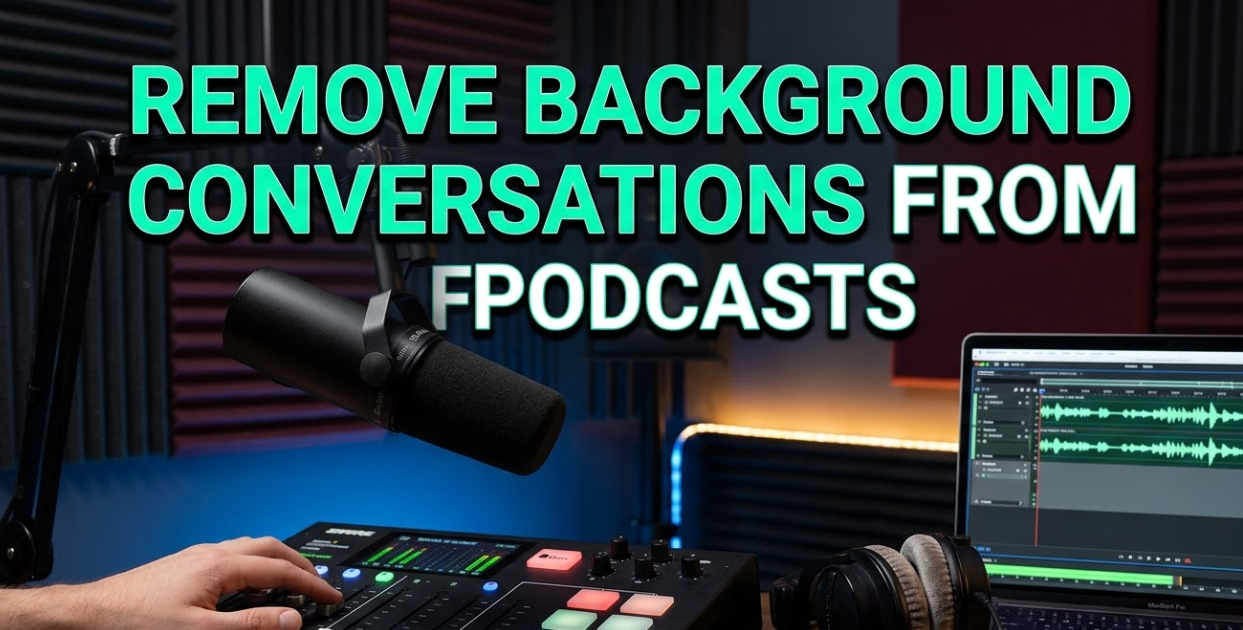
If you’ve ever recorded a podcast and later heard unwanted chatter, street noise, or someone talking in the background, you already know how frustrating it can be. Learning how to remove background conversations from podcasts is one of the most important skills any podcaster can develop. Background noise doesn’t just sound unprofessional — it pulls listeners out of the experience and can seriously hurt your show’s reputation.
The good news? You don’t need to be a sound engineer to fix this. Whether you’re a beginner with a basic setup or an experienced creator looking to polish your audio, there are proven tools and techniques that can help you clean up your recordings fast.
This guide covers everything — from why background conversations happen in the first place to the best software, step-by-step methods, and pro tips to prevent the problem before it starts.
Why Background Conversations Ruin Your Podcast
Listeners are picky. Studies show that bad audio quality is one of the top reasons people stop listening to a podcast — even if the content is great.
Background conversations are especially distracting because the human brain is wired to listen to speech. When your audience hears two voices at once, their brain tries to process both. That creates mental fatigue. After a few minutes, most listeners simply give up and move on to a cleaner show.
Here’s a quick breakdown of how different types of background noise affect listener experience:
| Type of Background Noise | Listener Impact | Severity |
|---|---|---|
| Background conversations/voices | Very distracting, hard to ignore | High |
| Air conditioning/HVAC hum | Mildly annoying but tolerable | Medium |
| Street traffic noise | Moderately distracting | Medium |
| Keyboard clicks | Slightly annoying | Low |
| Music bleed from another room | Very distracting | High |
| Echo/reverb in the room | Makes audio sound amateurish | Medium-High |
As you can see, background conversations rank among the most damaging types of noise. That’s why removing them should be your top priority.
What Causes Background Conversations in Podcast Recordings
Before you fix the problem, it helps to know where it’s coming from. Background voices in podcast recordings usually happen because of one of these reasons:
Recording in a Shared Space
Open offices, cafés, home living rooms, and co-working spaces are full of people talking. Even if it seems quiet when you press record, ambient conversations can sneak into your microphone — especially if you’re using an omnidirectional mic.
Thin Walls and Noisy Neighbors
Recording at home sounds like a dream setup. But thin walls let in sounds from the next room or apartment. Family members talking, roommates on calls, or even a TV playing nearby can bleed into your audio.
Remote Guest Recordings
When you record with a guest over the internet, you can’t control their environment. They might be at home with kids playing in the background, in a café, or near a busy street. Their background sounds get picked up by their microphone and mixed into your episode.
Poor Microphone Placement
Even a great microphone will pick up room noise if it’s not placed correctly. Pointing a mic in the wrong direction or using the wrong polar pattern setting can dramatically increase how much background sound it captures.
No Acoustic Treatment
Hard surfaces — like bare walls, tile floors, and windows — bounce sound around the room. This creates echoes and makes background conversations seem louder and harder to remove later.
The Best Tools to Remove Background Conversations From Podcasts
Let’s get into the practical stuff. Here are the top tools podcasters use to clean up background voices and noise.
Adobe Podcast (Enhance Speech)
Adobe Podcast has a free AI-powered tool called Enhance Speech. You upload your audio file, and it automatically removes background noise, including conversations. It works incredibly well for spoken word content.
Best for: Quick cleanup without any technical knowledge Cost: Free (with an Adobe account)
Descript
Descript is a full podcast editing platform with a built-in noise removal feature. It works like a word processor — you edit the transcript, and the audio changes with it. It also has a Studio Sound feature that removes background noise automatically.
Best for: Full podcast editing workflow + noise removal Cost: Free plan available; paid plans start at $12/month
Audacity (with Noise Reduction Plugin)
Audacity is a free, open-source audio editor. It has a built-in Noise Reduction tool that can reduce or eliminate background conversations when used properly. It takes a bit more skill than the AI tools, but it gives you more control.
Best for: Podcasters who want manual control and a free option Cost: 100% free
Krisp
Krisp is a real-time noise cancellation app. It works during live recordings or calls. It mutes background voices, noise, and even echo — before the audio ever hits your recording software. It’s especially useful when recording remote guests.
Best for: Real-time noise removal during recording Cost: Free plan available; Pro starts at $8/month
iZotope RX
iZotope RX is the industry standard for professional audio repair. It has advanced tools like Dialogue Isolation, Voice De-noise, and Spectral Repair. These tools can remove background conversations that other software can’t touch.
Best for: Heavy-duty noise removal and professional-level results Cost: Starts at $99 (Elements version)
Here’s a comparison table to help you choose:
| Tool | Ease of Use | Real-Time? | AI-Powered? | Price |
|---|---|---|---|---|
| Adobe Podcast | Very Easy | No | Yes | Free |
| Descript | Easy | No | Yes | Free/$12+ |
| Audacity | Moderate | No | No | Free |
| Krisp | Easy | Yes | Yes | Free/$8+ |
| iZotope RX | Advanced | No | Partial | $99+ |
Step-by-Step: How to Remove Background Conversations in Audacity
Audacity is one of the most popular tools for this job. Here’s a simple, step-by-step process to clean up your podcast audio.
Step 1 — Import Your Audio File
Open Audacity and go to File > Import > Audio. Select your podcast recording. The audio waveform will appear on screen.
Step 2 — Find a Section of Pure Background Noise
Look for a part of the recording where only the background noise is present — no talking. Even 0.5 to 1 second is enough. This is called a “noise profile.”
Step 3 — Select That Section
Click and drag to highlight just that section of background noise.
Step 4 — Open the Noise Reduction Tool
Go to Effect > Noise Reduction. A dialog box will appear.
Step 5 — Get Noise Profile
Click the “Get Noise Profile” button. Audacity will analyze that section and learn what the background noise sounds like.
Step 6 — Select the Entire Recording
Press Ctrl+A (or Cmd+A on Mac) to select the entire audio track.
Step 7 — Apply Noise Reduction
Go back to Effect > Noise Reduction. This time, adjust the sliders:
- Noise Reduction (dB): Start at 12. Go higher if needed, but too much can make the voice sound robotic.
- Sensitivity: Around 6 is a good starting point.
- Frequency Smoothing: Set to 3.
Click OK to apply.
Step 8 — Listen and Adjust
Play back the audio. If you still hear background voices, repeat the process with slightly higher settings. If the voice sounds unnatural or “watery,” reduce the noise reduction level.
Step 9 — Export Your Cleaned Audio
Go to File > Export and choose your format (MP3 or WAV). Your cleaner podcast audio is ready.
Using AI Tools to Remove Background Conversations Fast
AI-powered tools have changed the game. They do in seconds what used to take hours of manual editing. Here’s how to use two of the most popular ones.
How to Use Adobe Podcast Enhance Speech
- Go to podcast.adobe.com/enhance
- Upload your audio or video file
- Wait for the AI to process it (usually under a minute)
- Preview the cleaned audio
- Download the enhanced file
That’s it. The AI automatically identifies and removes background conversations, room noise, and other distractions. The results are impressive — even for heavily contaminated recordings.
How to Use Krisp During a Live Recording
- Download and install Krisp from krisp.ai
- Open your recording software (Zoom, Riverside, Squadcast, etc.)
- In your audio settings, set Krisp Microphone as your input and Krisp Speaker as your output
- Enable noise cancellation in the Krisp app
- Start recording — Krisp filters background voices in real time
This is a great option for interview-style podcasts where your guests record from unpredictable environments.
Pro Tips to Prevent Background Conversations Before You Record
Removing background conversations after the fact is possible — but preventing them in the first place saves you a lot of time and effort.
Choose a Cardioid Microphone
Cardioid microphones pick up sound from the front and reject sound from the sides and back. This means background conversations happening behind you or to the side are naturally filtered out. Most popular podcast mics — like the Audio-Technica AT2020 or the Shure SM7B — are cardioid.
Use a Reflection Filter or Portable Vocal Booth
A reflection filter wraps around your microphone and blocks sound coming from behind it. A portable vocal booth does the same, but more aggressively. Both options are affordable and make a huge difference in how much background sound gets into your recordings.
Record at the Right Time
If you’re recording at home, plan your sessions for quiet periods — early mornings, late evenings, or when your household is out. If you’re in a shared space, book a private room or a recording studio.
Set Ground Rules for Remote Guests
Before recording with a guest, send them a short checklist:
- Record in the quietest room possible
- Close windows and doors
- Use headphones (not speakers)
- Use a cardioid microphone if available
- Mute when not speaking
This small step can dramatically reduce the amount of background conversation cleanup you’ll need to do later.
Treat Your Recording Space
Acoustic treatment doesn’t have to be expensive. Hanging thick curtains, placing a bookshelf full of books behind you, or recording in a closet full of clothes can all reduce echoes and muffle background noise significantly.
How Background Conversation Removal Actually Works
Ever wonder what’s happening under the hood when you click “Remove Noise”? Here’s a simple explanation.
Sound is made up of frequencies — think of them like different musical notes happening at the same time. Your voice occupies a certain range of frequencies. Background conversations and other noises occupy overlapping (but often different) frequencies.
Noise removal tools analyze the audio and try to separate the frequencies that belong to your voice from those that belong to background sounds. They do this in two main ways:
Traditional noise reduction uses a snapshot (the noise profile) to learn what the background sounds like, then subtracts those frequencies from the whole recording.
AI-based noise removal goes further. It uses machine learning models trained on thousands of hours of speech and noise to identify — in real time — which parts of the audio are speech and which are background. This is why AI tools often sound more natural than traditional tools.
Neither method is perfect. Very loud background conversations that overlap directly with your voice are the hardest to remove. That’s why recording in a controlled environment is always the first line of defense.
Common Mistakes When Trying to Remove Background Conversations
Even with the right tools, it’s easy to make mistakes that ruin your audio further. Watch out for these.
Over-Processing the Audio
Applying too much noise reduction makes voices sound robotic, metallic, or like they’re underwater. Always use the minimum amount of noise reduction needed to clean the audio.
Not Listening on Different Devices
Audio that sounds great on studio headphones might sound terrible on a phone speaker or earbuds. Always test your cleaned audio on multiple devices before publishing.
Skipping the Preview Step
Most noise reduction tools have a preview button. Always use it before committing the effect. This lets you catch problems before they become permanent.
Ignoring the Guest’s Audio Until Post-Production
If you’re doing a remote interview, don’t wait until editing to realize your guest’s audio is full of background chatter. Use Krisp or ask guests to use Cleanfeed — tools that filter noise in real time during the call.
Using the Wrong Tool for the Job
Light background hum? Audacity’s noise reduction tool is fine. Loud, overlapping voices? You’ll need iZotope RX or a similar professional tool. Matching the right tool to the problem saves time and produces better results.
Real-World Scenario: Cleaning Up a Noisy Remote Interview
Let’s say you recorded an interview with a guest who was sitting in a busy café. You can clearly hear other people talking, cups clinking, and music in the background. Here’s how you’d tackle it.
Step 1: Import the audio into iZotope RX or Descript.
Step 2: Use the Dialogue Isolation tool (iZotope RX) or Studio Sound (Descript). These tools are designed specifically for this kind of multi-layered noise problem.
Step 3: Apply the effect and preview the results. In most cases, the background café noise — including conversations — will be significantly reduced.
Step 4: If voices still bleed through, use the Spectral Repair tool in iZotope RX to manually target and reduce specific bursts of background talking.
Step 5: Apply a gentle EQ boost around 2kHz–5kHz to bring the guest’s voice forward in the mix.
Step 6: Normalize the audio to -16 LUFS (the standard loudness level for podcasts).
Step 7: Export and review.
The result won’t always be studio-perfect — but it will be listenable, and your audience will appreciate the effort.
For more resources on audio editing, podcast production, and digital content tools, check out Cryptonews21 for helpful guides and updates.
For detailed technical guidance on podcast loudness standards, the Spotify Podcast Loudness Standards page is an excellent external reference.
Frequently Asked Questions
Can background conversations be completely removed from a podcast?
Not always — it depends on how loud the background voices are and how much they overlap with the speaker’s voice. Light to moderate background conversations can usually be removed cleanly with AI tools like Adobe Podcast or iZotope RX. Very loud or overlapping voices are harder and may only be partially removed.
What is the best free tool to remove background noise from podcasts?
Adobe Podcast’s Enhance Speech tool is the best free option. It’s AI-powered, easy to use, and produces excellent results for spoken word content. Audacity is also free and gives you more manual control, though it has a steeper learning curve.
Does Krisp work for podcast recording?
Yes. Krisp works as a virtual microphone that filters out background noise — including conversations — in real time. It’s especially useful when recording remote guests who are in noisy environments. It works with most recording apps like Zoom, Riverside, and Squadcast.
How do I remove background conversations from a podcast recorded on my phone?
If you recorded on your phone, you can upload the file to Adobe Podcast Enhance Speech or Descript. Both support mobile recordings and can significantly reduce background conversations, even from lower-quality phone microphones.
Will removing background noise affect my voice quality?
It can, if overdone. Light noise removal has little effect on voice quality. Heavy noise reduction can make voices sound robotic or unnatural. Always use the minimum level needed and preview the result before applying it permanently.
What microphone is best for avoiding background conversations?
A dynamic cardioid microphone like the Shure SM7B or the Rode PodMic is excellent at rejecting background noise. These mics pick up sound mostly from the front and ignore sounds coming from the sides and rear, which naturally reduces background conversations in your recordings.
Is it possible to remove background conversations in real time?
Yes. Tools like Krisp and NVIDIA RTX Voice can remove background conversations in real time during your recording. These apps sit between your microphone and your recording software, filtering noise before it ever enters your audio file.
Wrapping It All Up
Background conversations in podcasts are a common problem — but they’re very fixable. Whether you use a free tool like Audacity or Adobe Podcast, or invest in professional software like iZotope RX, you have plenty of options to clean up your recordings and deliver a polished listening experience.
The key takeaways are simple. First, try to prevent the problem by recording in a quiet environment and using the right microphone. Second, when background voices do sneak in, choose the right tool for the level of noise you’re dealing with. Third, don’t over-process — a little goes a long way when it comes to noise reduction.
When you take the time to remove background conversations from podcasts, you’re not just improving audio quality. You’re showing your audience that you respect their time and attention. That’s the kind of thing that turns casual listeners into loyal fans.
Your show deserves to sound its best. With the tools and techniques in this guide, there’s no reason it can’t.