If you’ve ever recorded a podcast and later discovered an unwanted voice or noise hiding in your audio, you know how frustrating it can be. Learning how to remove background voice from podcast audio is one of the most valuable skills any podcaster can develop. Whether it’s a TV murmuring in the next room, a family member talking nearby, or an echo bouncing off your walls, background voices can ruin an otherwise great episode. The good news? You don’t need to be a sound engineer to fix it.
This guide walks you through everything — from free tools to pro techniques — so your podcast sounds clean, clear, and professional.
Why Background Voices Hurt Your Podcast More Than You Think
Listeners are picky. Studies show that poor audio quality is the number one reason people stop listening to a podcast — even if the content is amazing.
Background voices are especially distracting because the human brain is wired to pay attention to speech. When two voices overlap, your listener’s brain tries to process both at once. That’s exhausting. Over time, it pushes people away.
Here’s a quick look at how different audio issues affect listener retention:
| Audio Problem | Impact on Listener Experience | Difficulty to Fix |
|---|---|---|
| Background voice/talking | Very High | Medium–High |
| Room echo/reverb | High | Medium |
| Hissing or hum | Medium | Low–Medium |
| Wind noise | Medium | Low |
| Mic pops (plosives) | Low–Medium | Low |
As you can see, background voices rank at the top when it comes to damaging the listener experience. That’s exactly why knowing how to remove background voice from podcast audio matters so much.
What Causes Background Voices in Podcast Recordings?
Before jumping into solutions, it helps to know where the problem comes from. Identifying the source makes it easier to fix — and prevent in the future.
Common Sources of Unwanted Background Voice
People nearby: A roommate, partner, or child talking in the same space or an adjacent room is one of the most common causes.
TV or radio bleed: If a screen is on in the background, its audio can bleed into your microphone — especially with sensitive condenser mics.
Open windows: Traffic, neighbors, or outdoor conversations can sneak into your recording through windows or thin walls.
Phone calls or video calls: If you’re recording remotely with a guest, their background sounds can bleed through.
Reflective rooms: Hard walls bounce sound around. In untreated rooms, voices echo and layer over each other.
Understanding these causes helps you choose the right fix — whether it’s acoustic treatment, software tools, or a combination of both.
Tools You Can Use to Remove Background Voice From Podcast Audio
There’s no shortage of tools available today. Some are free, some are paid, and some are built right into your editing software. Here’s a breakdown of the best options:
Free Tools That Actually Work
Audacity Audacity is a free, open-source audio editor that’s been around for decades. It has a built-in Noise Reduction tool that works surprisingly well for consistent background sounds.
Steps to use it:
- Highlight a section of audio that contains only the background voice (no host speaking).
- Go to Effect → Noise Reduction.
- Click Get Noise Profile.
- Select your full audio track.
- Go back to Effect → Noise Reduction and click OK.
This method works best when the background voice is consistent in tone and volume.
Adobe Podcast (Enhance Speech — Free Tier) Adobe offers a free web-based tool called Adobe Podcast Enhance Speech. You upload your audio file, and Adobe’s AI automatically cleans it up — including reducing background voices and noise. It’s incredibly simple and produces solid results.
Paid Tools With More Precision
iZotope RX iZotope RX is the industry gold standard for audio repair. It has a powerful Dialogue Isolation feature that uses machine learning to separate voice from background noise with surgical precision. It’s pricey (starting around $99 for the Elements version), but it’s what professional podcast editors use.
Descript Descript is a podcast editing platform that treats audio like a word document. Its Studio Sound feature uses AI to clean up audio, reduce background voices, and improve overall clarity. It’s great for beginners who want professional results without deep technical knowledge.
Cleanfeed + Auphonic Cleanfeed captures clean remote audio, while Auphonic is an AI-powered post-production tool that automatically handles noise reduction, leveling, and more. Together, they create a powerful workflow.
| Tool | Price | Best For | Ease of Use |
|---|---|---|---|
| Audacity | Free | Consistent background noise | Medium |
| Adobe Podcast Enhance | Free | Quick AI cleanup | Very Easy |
| iZotope RX Elements | ~$99 | Deep editing, best results | Advanced |
| Descript | $12–$24/mo | All-in-one podcast editing | Easy |
| Auphonic | Free/Paid | Automated post-production | Easy |
Step-by-Step: How to Remove Background Voice From Podcast Audio in Audacity
Audacity is the most accessible starting point for most podcasters. Here’s a more detailed walkthrough:
Step 1 — Import Your Audio File
Open Audacity. Go to File → Import → Audio and select your podcast recording. Your audio waveform will appear on screen.
Step 2 — Find a Clean Sample of the Background Voice
Scroll through your audio and find a short section — even just one or two seconds — where the background voice is clearly audible but your host is not speaking. This is your “noise profile.”
If there’s no section like this, find the quietest moment in the recording where the background voice is lowest.
Step 3 — Apply the Noise Profile
Highlight that section. Go to Effect → Noise Reduction → Get Noise Profile. Audacity now “learns” what the background voice sounds like.
Step 4 — Select All Audio and Apply Noise Reduction
Press Ctrl+A (or Cmd+A on Mac) to select all your audio. Then go back to Effect → Noise Reduction and adjust these settings:
- Noise Reduction (dB): Start at 12. Go higher only if needed.
- Sensitivity: Try 6.
- Frequency Smoothing: Keep at 3.
Click Preview to hear the result before committing.
Step 5 — Export Your Cleaned Audio
Once satisfied, go to File → Export and choose your preferred format (MP3 or WAV). Your cleaned podcast episode is ready.
Using AI to Remove Background Voice — The New Standard
Artificial intelligence has completely changed the game for audio cleanup. Just a few years ago, removing a background voice cleanly required expensive software and hours of manual work. Today, AI tools can do it in minutes.
How AI Voice Removal Works
AI tools are trained on thousands of hours of audio data. They learn to recognize what a “clean voice” sounds like versus what background interference sounds like. When you upload your audio, the AI separates the two — keeping the host’s voice and reducing or eliminating everything else.
This process is called source separation, and it’s much more powerful than traditional noise reduction.
Best AI Tools for Podcast Audio Cleaning
Adobe Podcast Enhance Speech Free to use. Just upload your file at podcast.adobe.com and download the cleaned version. It works impressively well even on difficult recordings.
LALAL.AI Originally built for music (separating vocals from instruments), LALAL.AI now works on voice recordings too. It’s one of the best tools for isolating a specific voice from background chatter.
Krisp Krisp is a real-time noise cancellation app. It works while you’re recording, filtering out background voices as they happen. This is great for live podcast recording sessions or remote interviews.
Nvidia RTX Voice If you have an Nvidia GPU, RTX Voice is a powerful free tool that works in real-time to remove background sounds — including voices — as you record.
Fixing Background Voice in Remote Podcast Interviews
Remote recording adds a whole new layer of complexity. Your guest might be recording in a noisy environment, and that background voice ends up in your episode.
Best Practices for Remote Recordings
Ask guests to use headphones. This prevents their speakers from bleeding into their microphone.
Use a platform designed for podcast recording. Tools like Riverside.fm, Squadcast, or Zencastr record each participant locally and separately. That means you get individual audio tracks — and you can clean each one independently.
Send guests a setup guide. A simple one-page PDF with tips (quiet room, close the door, turn off the TV) can prevent most background voice issues before they happen.
Record double-enders. This means both you and your guest record your own audio locally using a voice recorder or DAW. You then sync and combine the tracks in post-production. The audio quality is much higher and easier to clean.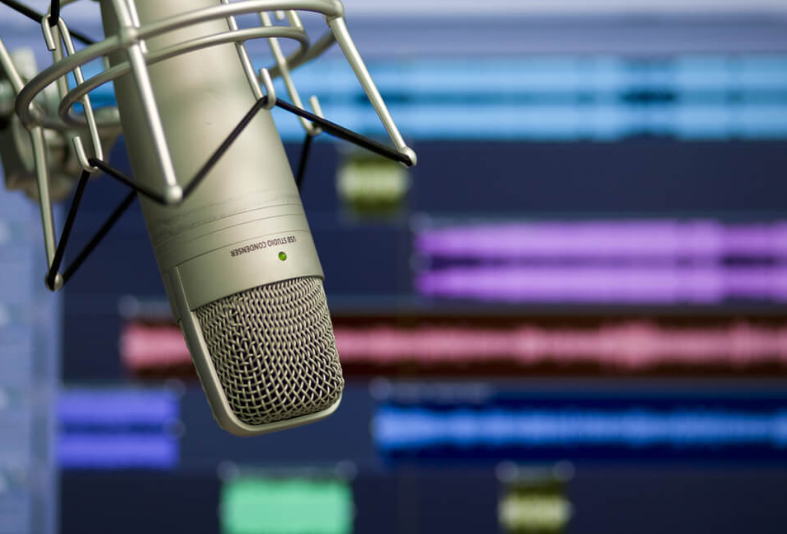
Preventing Background Voice Before You Hit Record
The best fix is prevention. A few simple habits can eliminate most background voice problems before they ever reach your editing software.
Set Up a Quiet Recording Space
You don’t need a professional studio. You need a quiet, soft room. Soft materials absorb sound — bookshelves full of books, thick curtains, rugs, and couches all help.
Quick DIY soundproofing tips:
- Record inside a closet full of clothes (seriously — it works).
- Hang moving blankets or thick curtains around your recording area.
- Place foam panels or bookshelves on walls that face noise sources.
- Put a rug under your recording desk.
Choose the Right Microphone
Dynamic microphones (like the Shure SM7B or Audio-Technica ATR2100x) are less sensitive than condenser microphones. They pick up less background noise by nature. If you’re in a noisy environment, a dynamic mic is your best friend.
Also, use a cardioid pickup pattern. Cardioid mics capture sound from the front and reject sound from the sides and back — which helps block out background voices coming from other directions.
Use a Pop Filter and Mic Positioning
Positioning your mic correctly reduces the chance of picking up distant sounds. Keep the mic 4–6 inches from your mouth. The closer the mic, the less room noise it captures relative to your voice.
How to Tell If Your Cleanup Worked
After applying noise reduction or AI cleanup, always do a quality check before publishing.
Listen on Different Devices
Play your audio through:
- Headphones
- Phone speakers
- Car speakers
- A Bluetooth speaker
Each device reveals different audio issues. Headphones catch subtle voice remnants. Car speakers reveal muddiness. Phone speakers expose harshness.
Use a Waveform Analysis Tool
Tools like Auphonic or iZotope Insight give you visual feedback on your audio’s frequency and dynamics. Look for unexpected spikes in the frequency ranges where human voices sit (100 Hz–8 kHz). If you still see energy there when your host isn’t talking, a background voice may still be present.
Ask a Test Listener
Send your cleaned episode to a friend or fellow podcaster before publishing. Fresh ears catch things you’ve stopped noticing.
Quick Comparison: Manual vs. AI Voice Removal
| Feature | Manual (Audacity) | AI-Powered Tools |
|---|---|---|
| Speed | Slow (30–60 min/episode) | Fast (1–5 min/episode) |
| Accuracy | Moderate | High–Very High |
| Learning Curve | Medium | Very Low |
| Cost | Free | Free–$25/month |
| Control | Full | Limited |
| Best For | Consistent noise | Complex background voices |
For most podcasters — especially beginners — AI tools offer the best balance of speed, quality, and ease. But knowing how to work manually in Audacity gives you a powerful fallback when AI doesn’t get it quite right.
FAQs: Remove Background Voice From Podcast Audio
Q1: Can I completely remove a background voice from my podcast? In most cases, you can significantly reduce a background voice — but completely removing it without any trace depends on how loud it is and how much it overlaps with the host’s voice. AI tools like iZotope RX or LALAL.AI come closest to full removal.
Q2: Does Audacity remove voice from audio for free? Yes. Audacity is completely free and includes a Noise Reduction tool that can reduce background voices. It works best when the background voice is consistent and doesn’t heavily overlap with the main speaker.
Q3: What’s the easiest AI tool to remove background voice? Adobe Podcast Enhance Speech is the easiest. You upload your file, click a button, and download the cleaned version. No setup, no learning curve.
Q4: Will noise reduction damage my host’s voice quality? It can, if applied too aggressively. Always start with conservative settings and preview the result. Over-processing can make a voice sound robotic or hollow. Less is often more.
Q5: How do I prevent background voice during remote interviews? Use tools like Riverside.fm or Squadcast that record each speaker on a separate local track. Also, ask your guest to use headphones and record in a quiet space.
Q6: Is it possible to isolate one voice from a recording with multiple people talking? This is very difficult. AI tools can sometimes do partial isolation, but when two voices overlap significantly, full isolation is still a challenge even for advanced software. Prevention — like recording each person on a separate track — is far more effective.
Q7: What microphone is best for rejecting background voice? A dynamic cardioid microphone like the Shure SM7B, Rode PodMic, or Audio-Technica ATR2100x is ideal. These mics focus on what’s directly in front of them and naturally reject off-axis sound.
Wrapping It All Up
Removing background voice from podcast audio isn’t as complicated as it might seem at first. With the right tools and techniques, even a beginner can clean up a messy recording and produce something that sounds professional.
Start with prevention — set up a quiet recording space, use a good microphone, and record each speaker on a separate track whenever possible. Then use tools like Audacity for manual cleanup or Adobe Podcast Enhance and iZotope RX for AI-powered removal.
The more you practice, the faster and better you’ll get. And as your audio quality improves, so will your listener retention, your reviews, and your podcast’s reputation.