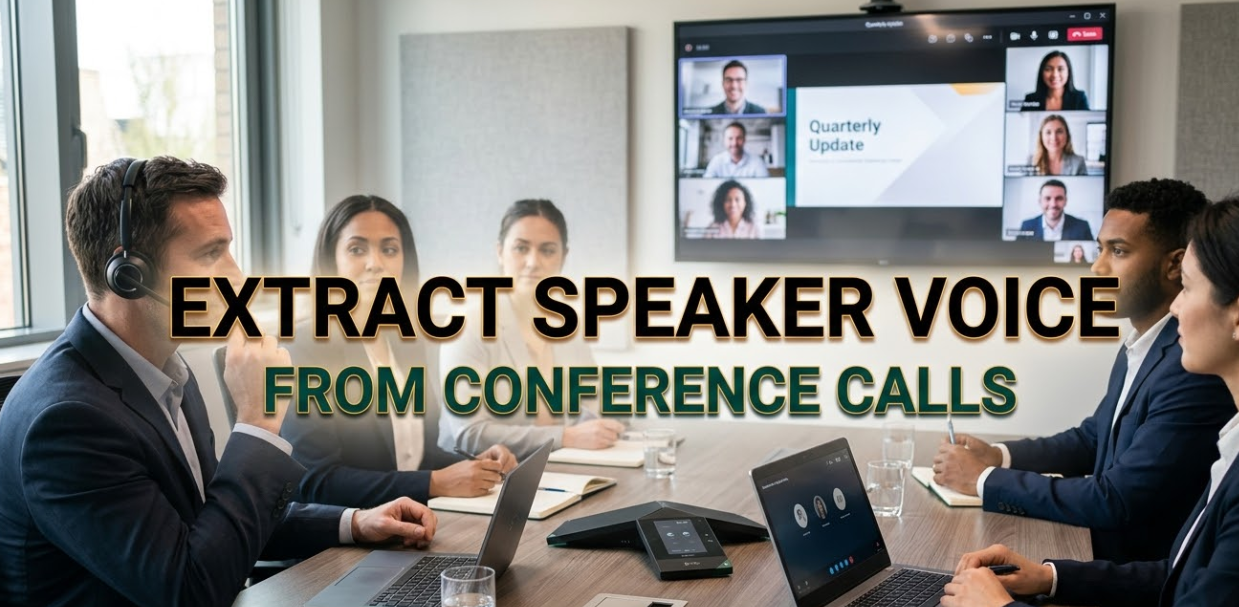
Businesses run on communication. And a huge chunk of that communication happens on conference calls. But here’s the problem — when five people talk on a single call, their voices mix into one messy audio track.
To extract speaker voice from conference calls has become one of the most sought-after tasks in today’s remote-first world. Whether you’re a journalist, a legal team, a podcast editor, or a business analyst, separating voices from a group call can save hours of manual work.
This guide breaks down everything you need to know — the tools, the methods, the use cases, and the tips — in plain, easy-to-follow language. No tech degree required.
What Actually Happens to Audio on a Conference Call
Before diving into solutions, it helps to understand the problem.
When people join a conference call, their microphones pick up sound and send it to a central server. That server mixes all the audio streams into one combined track. What you hear — and what gets recorded — is that combined version.
Think of it like pouring three colored liquids into one glass. Once they’re mixed, separating them isn’t easy. But it’s not impossible.
Modern AI tools use a process called speaker diarization and source separation to identify and isolate individual voices. These tools train on thousands of hours of audio data so they can recognize patterns in pitch, tone, and timing.
Key Terms You Should Know Before You Start
| Term | What It Means |
|---|---|
| Speaker Diarization | Identifying who spoke and when in an audio file |
| Source Separation | Splitting mixed audio into individual sound sources |
| Voice Fingerprinting | Using unique vocal traits to identify a specific person |
| Transcription | Converting spoken words into written text |
| Mono Audio | A single-channel audio file (no left/right separation) |
| Stereo Audio | A two-channel audio file (left and right) |
| Audio Segmentation | Breaking audio into labeled chunks by speaker |
Understanding these terms will help you choose the right tool for the job.
Who Needs to Extract Speaker Voice From Conference Calls?
The use cases are broader than most people think. Here’s a quick look at who benefits most:
Legal and Compliance Teams
Court cases often rely on recorded calls. Lawyers need to know exactly who said what. Extracting individual speakers makes transcripts more accurate and easier to reference in legal proceedings.
Journalists and Researchers
Interviews done over group calls need to be cleaned up. A journalist might record a panel discussion and need each speaker’s voice separated for different story angles.
Podcast and Media Producers
A multi-guest podcast recorded on Zoom often sounds uneven. Producers use voice extraction to apply different audio settings to each speaker — boosting clarity, cutting background noise, or adjusting volume independently.
HR and Recruitment Teams
Recorded interviews need to be reviewed. Separating the interviewer’s voice from the candidate’s makes it faster to evaluate responses without scrubbing through the full recording.
Business Analysts and Sales Teams
Call center recordings and sales calls are gold mines of customer insights. Separating customer voice from agent voice allows for sentiment analysis on each side independently.
Educators and eLearning Creators
Online class recordings often have multiple instructors or students. Splitting those voices helps create cleaner lesson clips or study material.
How AI Tools Extract Speaker Voices From Calls
This is where things get interesting. AI-based voice extraction works in layers.
Step 1 — Audio Input and Pre-Processing
The tool first takes the raw audio file. It cleans up background noise, normalizes volume levels, and prepares the file for analysis. Poor audio quality here means lower accuracy later.
Step 2 — Speaker Detection
Using machine learning models, the tool scans the audio for distinct vocal patterns. It builds a temporary “profile” for each voice based on frequency, tone, and rhythm.
Step 3 — Diarization
Now the tool tags sections of the audio: “Speaker 1 spoke here, Speaker 2 spoke here.” This is called diarization. It’s like adding name labels to each sentence in a transcript.
Step 4 — Source Separation
With labels in place, the system tries to generate separate audio channels or files — one for each speaker. This step is harder because most conference call recordings are already merged into a mono or stereo track.
Step 5 — Output Delivery
You get either:
- Separate audio files for each speaker
- A color-coded transcript showing who said what
- Time-stamped labels in a single audio file
Top Tools to Extract Speaker Voice From Conference Calls
Here’s a detailed comparison of the best tools available right now:
1. Otter.ai
Best for: Business teams and transcription-heavy workflows
Otter.ai is one of the most popular transcription tools out there. It supports live transcription and post-call processing. Its speaker identification feature labels each speaker in the transcript automatically.
- Supports Zoom, Google Meet, and Microsoft Teams
- Real-time speaker labeling
- Can be trained to recognize specific voices
- Free plan available; paid plans start at around $10/month
Limitation: It produces a labeled transcript, not separate audio files.
2. Krisp
Best for: Real-time noise cancellation and voice separation
Krisp works differently. It runs in the background during your call and separates your voice from all other sounds — including other speakers. It’s more of a live tool than a post-processing one.
- Removes background noise in real time
- Works with any conferencing app
- Useful for recording clean, single-voice tracks
- Free plan with limited minutes; pro plan around $8/month
Limitation: Best for isolating your own voice during a live call, not for separating voices in a recorded file.
3. Pyannote.audio (Open Source)
Best for: Developers and researchers who want deep control
Pyannote is an open-source Python toolkit specifically built for speaker diarization. It’s not a plug-and-play tool — you need some coding knowledge — but it’s extremely powerful.
- Trained on large datasets for high accuracy
- Customizable for different languages and accents
- Can output per-speaker audio segments
- Free to use
Limitation: Requires Python knowledge and setup time.
4. Descript
Best for: Podcasters and video/audio editors
Descript is a full editing suite that also does speaker labeling. You can click on a speaker’s name in the transcript and select all their parts for editing or export.
- Visual waveform editor
- Speaker detection with manual correction
- Export individual speaker tracks
- Plans start at $12/month
Limitation: Speaker separation is based on transcript labels, not always true audio isolation.
5. AWS Transcribe
Best for: Enterprise teams with technical resources
Amazon Web Services offers a powerful transcription API that includes speaker diarization. You upload a file, and it returns a JSON transcript with each speaker’s segments labeled.
- Handles large files
- Multi-language support
- High accuracy in clean audio environments
- Pay-per-use pricing
Limitation: Requires API knowledge; not a consumer-friendly interface.
6. Whisper + PyAnnote (Combined Pipeline)
Best for: Developers who want the best open-source combo
OpenAI’s Whisper handles transcription while PyAnnote handles diarization. When combined, this pipeline gives you speaker-labeled transcripts with near-commercial accuracy — completely free.
This is increasingly popular in research and enterprise settings.
Comparison Table: Tools at a Glance
| Tool | Separate Audio Files | Speaker Labeling | Real-Time | Best For | Cost |
|---|---|---|---|---|---|
| Otter.ai | ❌ | ✅ | ✅ | Business teams | Free / $10+ |
| Krisp | Partial | ❌ | ✅ | Live call isolation | Free / $8+ |
| Pyannote | ✅ | ✅ | ❌ | Developers | Free |
| Descript | Partial | ✅ | ❌ | Podcasters | $12+ |
| AWS Transcribe | ❌ | ✅ | ❌ | Enterprise | Pay-per-use |
| Whisper + PyAnnote | ✅ | ✅ | ❌ | Developers | Free |
Step-by-Step: How to Extract Speaker Voice From Conference Calls Using Descript
Let’s walk through a practical example using Descript, since it’s the most accessible for non-technical users.
Step 1: Create a free Descript account at descript.com
Step 2: Upload your conference call recording (MP3, MP4, WAV, or M4A work fine)
Step 3: Wait for Descript to transcribe the file — this usually takes a few minutes
Step 4: Once the transcript appears, look for the speaker labels on the left side. Descript auto-detects speakers and labels them “Speaker 1,” “Speaker 2,” etc.
Step 5: Click on a speaker label to rename it. Add real names if you know who spoke.
Step 6: Right-click on a speaker’s section or use the “Select All by Speaker” option to highlight all their parts.
Step 7: Use the export feature to pull out just that speaker’s segments.
Step 8: You now have a cleaned-up audio or video clip of that speaker alone.
Pro Tip: Always check the transcript for errors. AI tools sometimes mix up speakers when two voices have similar pitch levels.
Common Challenges When Separating Voices From Conference Calls
It’s not always smooth sailing. Here are the most common problems — and how to deal with them:
Challenge 1: Overlapping Speech
When two people talk at the same time, most tools struggle. The audio gets tangled, and neither speaker’s voice is clean.
Solution: Use tools with higher diarization accuracy (Pyannote, AWS Transcribe). Also, inform participants to avoid talking over each other during recording.
Challenge 2: Similar Voice Profiles
Some speakers have very similar pitches. The AI may confuse them.
Solution: Train the tool with voice samples if the platform allows it. Otter.ai, for example, lets you create voice profiles.
Challenge 3: Poor Audio Quality
Background noise, echo, or low microphone quality destroy accuracy.
Solution: Run the file through a noise reducer like Krisp or Adobe Podcast Enhance before processing it through a diarization tool.
Challenge 4: Mono Audio Files
Many conferencing tools output mono recordings. There’s only one channel, so separation is harder.
Solution: Choose conferencing platforms that offer multi-track or per-speaker recording. Zoom, for instance, has a setting to record separate audio files per participant.
Challenge 5: Large File Sizes
Long calls create large files. Some free tools have upload limits.
Solution: Split the file using Audacity (free) before uploading it. Most tools handle files under 500MB without issues.
Record Conference Calls the Right Way From the Start
Prevention is better than cure. If you know you’ll need to extract speaker voices later, set up your recording correctly.
Use Per-Speaker Recording Features
Zoom has a feature called “Record a separate audio file for each participant.” Enable it before the call. This gives you individual tracks from the very beginning — no AI separation needed.
To enable it in Zoom:
- Go to Settings → Recording
- Enable “Record a separate audio file for each participant who turns on their microphone”
Google Meet and Microsoft Teams don’t offer this natively, but some third-party integrations can help.
Use a Dedicated Recording App
Apps like Riverside.fm and Squadcast are built for remote recording. They record each participant locally and then sync the tracks. The result is studio-quality, per-speaker audio without any post-processing needed.
These are especially popular with podcasters and video creators.
Set Audio Standards Before the Call
Ask participants to:
- Use headphones (reduces echo)
- Find a quiet space
- Use a dedicated microphone if possible
- Avoid rooms with hard surfaces (causes reverb)
Better input = better output when it comes to voice extraction.
Privacy and Legal Considerations
Before you record and process any call, make sure you’re doing it legally.
Consent is Non-Negotiable
In many countries and US states, you must inform all participants that they are being recorded. Some jurisdictions require active consent — meaning everyone must agree before you hit record.
Key rule: Always announce the recording at the start of the call.
GDPR and Data Privacy
If you’re handling calls involving people in the European Union, GDPR rules apply. Voice recordings are considered personal data. Processing them requires a lawful basis — usually consent or legitimate interest.
Be careful which third-party tools you use. Make sure they comply with data protection regulations and don’t store your audio longer than needed.
Internal Use vs. Public Use
Extracting a voice for internal analysis (HR review, sales coaching) is generally more permissible than using it publicly. Never use extracted voices for anything deceptive or without clear permission.
For more on responsible AI use in audio processing, visit the official resource at cryptonews21.com to explore how emerging technologies are reshaping communication and data privacy.
Industries Transforming Thanks to Voice Extraction Tech
📊 Voice Extraction Use Cases by Industry

  Legal & Compliance     ████████████████░░░░  80%
  Media & Journalism     ██████████████░░░░░░  70%
  Sales & Call Centers   ████████████████████  95%
  HR & Recruitment       ████████████░░░░░░░░  60%
  Education & eLearning  ██████████░░░░░░░░░░  50%
  Research & Academia    ████████░░░░░░░░░░░░  40%
Estimated adoption rate of speaker voice extraction tech by industry (2024)
What the Future Looks Like for Speaker Voice Extraction
AI is moving fast. Here’s where this technology is headed:
Real-Time Separation Will Become Standard
Tools will soon isolate each speaker’s voice live during the call — not just in post-processing. This will make transcripts and captions far more accurate in real time.
Better Accent and Language Handling
Current tools struggle with heavy accents or non-English speakers. Newer models trained on diverse datasets will handle these cases much more reliably.
Integration Into Conferencing Platforms
Zoom, Teams, and Meet will likely build native speaker separation directly into their platforms. You won’t need a third-party tool at all.
Voice Cloning Concerns
On the flip side, the same technology that extracts voices can be used to clone them. This raises serious ethical questions. The industry is working on watermarking systems to detect AI-generated or extracted voices.
FAQs: Extract Speaker Voice From Conference Calls
Q1: Can I extract a speaker’s voice from a Zoom recording?
Yes. If you recorded separate tracks per participant in Zoom, each voice is already isolated. If you have a mixed recording, use tools like Descript, Otter.ai, or the Whisper + PyAnnote pipeline to separate them by speaker.
Q2: Is it possible to extract voice from a low-quality recording?
It’s harder but not impossible. Run the audio through a noise reduction tool like Adobe Podcast Enhance or Krisp first. Then use a diarization tool. Accuracy will still be lower than with clean audio.
Q3: Are there free tools to extract speaker voice from conference calls?
Yes. Pyannote.audio and the Whisper + PyAnnote combination are both free and open-source. Otter.ai and Descript also offer free plans with limited features.
Q4: How many speakers can AI tools handle at once?
Most professional tools can handle 2 to 10 speakers. Accuracy tends to drop above 6 speakers, especially if multiple people talk at the same time.
Q5: Can I use extracted voices for commercial purposes?
Only with proper consent. Using someone’s voice without permission — even for internal purposes — can violate privacy laws. Always get written consent before using extracted audio commercially.
Q6: What file formats work best for voice extraction?
WAV and FLAC files are highest quality. MP3 works fine for most tools. Avoid highly compressed formats like OGG or low-bitrate MP3s (below 128kbps) as they reduce accuracy.
Q7: Does speaker voice extraction work in real time?
Some tools like Krisp work in real time during calls, but full speaker separation (multiple voices) in real time is still mostly in development. Most current tools process files after the call.
Q8: What’s the difference between speaker diarization and voice separation?
Speaker diarization labels who spoke and when in a transcript. Voice separation actually creates separate audio files per speaker. Diarization is more common; true audio separation is harder and less widely available.
Wrapping It All Up
The ability to extract speaker voice from conference calls has moved from a niche technical skill to a mainstream business need. Whether you’re cleaning up a podcast, building a legal case, or analyzing customer calls, the tools are here — and they’re only getting better.
The key takeaways:
- Set up your recordings correctly from the start (per-speaker recording where possible)
- Use the right tool for your skill level and budget
- Always handle voice data with privacy and legal compliance in mind
- Expect real-time, integrated solutions to become standard within the next few years
Audio AI is transforming how we process conversations. And knowing how to extract speaker voice from conference calls puts you ahead of the curve — whether you’re a solo creator, a growing business, or a large enterprise.
Start with the tools covered in this guide, experiment with your recordings, and find the workflow that fits your needs.