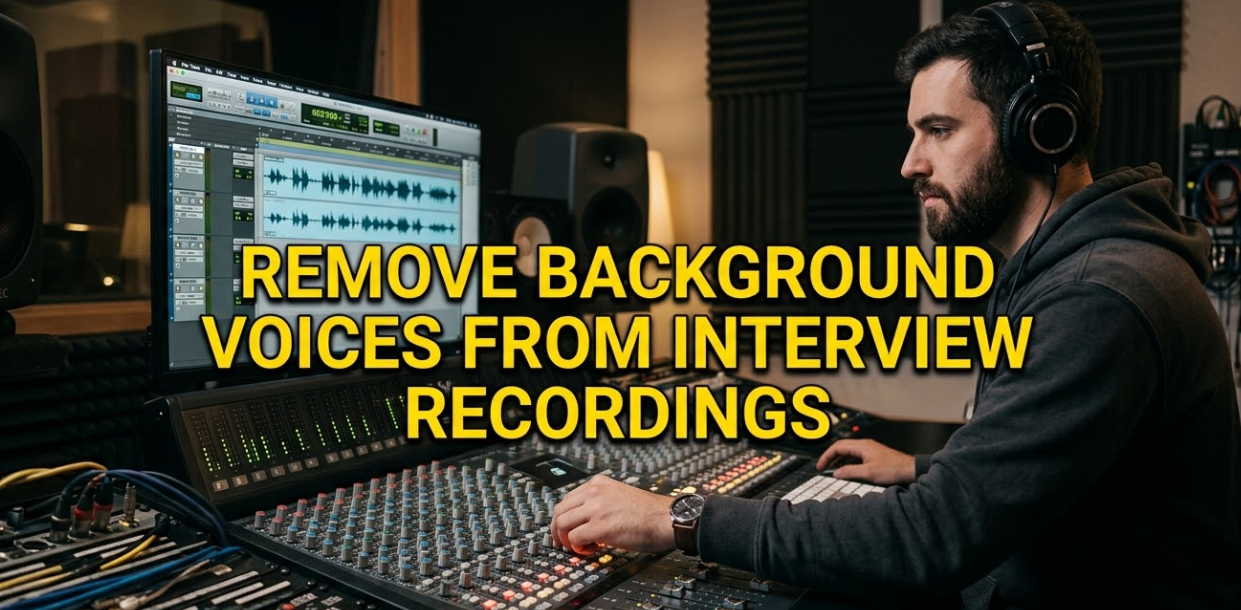
If you’ve ever recorded an interview only to hear someone talking in the background, you know how frustrating it can be. Background voices in interview recordings can ruin an otherwise great audio session. Whether you’re a journalist, podcaster, filmmaker, or content creator, learning how to remove background voices from interview recordings is one of the most valuable skills you can pick up in 2025.
This guide walks you through everything — from understanding why background voices happen to the best tools and techniques to fix them.
Why Background Voices Show Up in Your Interview Recordings
Before jumping into solutions, it helps to know the cause.
Background voices creep into recordings for several reasons. You might be recording in a café, office, or public space. Maybe someone else walked into the room mid-interview. Or perhaps your microphone picked up audio from another room through thin walls.
Here are the most common culprits:
| Cause | How It Affects Your Recording |
|---|---|
| Open microphones in noisy spaces | Picks up every nearby conversation |
| Poor room acoustics | Sound bounces and blurs voices together |
| Multiple speakers too close together | Voices bleed into each other |
| Cheap or omnidirectional mics | Captures audio from all directions equally |
| Remote interviews with echo | Background voices amplified through digital compression |
Once you know the cause, choosing the right fix becomes much easier.
How Background Voices Are Different From Other Noise
Most people think of background noise as hissing, static, or hum. But background voices are a different beast entirely.
Why background voices are harder to remove:
Unlike a consistent hum (which has a predictable frequency), voices change constantly. They shift in pitch, rhythm, and volume. That’s what makes removing them tricky — audio editors can’t just “cut out” a frequency range without also damaging the main speaker’s voice.
This is where modern AI-powered tools shine. They’ve been specifically trained to separate human voices from one another, something that older audio software simply couldn’t do well.
Best Tools to Remove Background Voices From Interview Recordings
Thankfully, 2025 has no shortage of powerful audio tools. Some are free, and some are paid. Here’s a breakdown of the most effective options available.
AI-Powered Online Tools
These require no software installation and work fast.
1. Adobe Podcast Enhance Adobe’s free AI tool is built specifically to clean up speech recordings. It separates foreground voice from everything else — including background voices — with impressive accuracy. You simply upload your file, and the AI does the rest.
2. Krisp Krisp is popular with podcasters and remote workers. It works in real time or on pre-recorded audio. It can suppress background voices, music, and ambient noise simultaneously.
3. NVIDIA RTX Voice / Broadcast If you have an NVIDIA graphics card, this free software uses AI to isolate your voice in real time. It’s powerful for live recording but also works well during post-production.
4. Descript Descript is an all-in-one audio and video editing platform. It includes a “Studio Sound” feature that removes background noise and voices automatically. It’s especially popular among podcasters and YouTube creators.
Professional Audio Software Options
For those who want more control, professional digital audio workstations (DAWs) offer advanced tools.
| Tool | Best For | Price | Skill Level |
|---|---|---|---|
| Adobe Audition | Full audio editing + noise reduction | ~$20/month | Intermediate |
| iZotope RX | Broadcast & film audio cleanup | $99–$399 | Advanced |
| Audacity (free) | Basic noise reduction | Free | Beginner |
| DaVinci Resolve | Video + audio combined | Free/Paid | Intermediate |
| Logic Pro | Mac users, podcast production | $199 one-time | Intermediate |
iZotope RX — The Industry Standard
When professionals talk about removing background voices from interview recordings, iZotope RX almost always comes up.
Here’s why it stands out:
- Dialogue Isolation: Specifically designed to separate speech from competing audio sources.
- Spectral Repair: Lets you visually select and remove sections of audio containing unwanted voices.
- Music Rebalance: Separates dialogue from music if your recording had both.
It’s not cheap, but for serious audio work, it delivers results that nothing else can match.
Step-by-Step: How to Remove Background Voices Using Audacity (Free)
Audacity is a great starting point for beginners. Here’s a simple process to clean up your recording:
Step 1 — Import your audio file Open Audacity and drag your interview recording into the workspace. You’ll see the waveform appear on screen.
Step 2 — Identify a section with only background voice Find a short clip (2–5 seconds) in your recording where only the background voice is audible — ideally between the main speaker’s sentences. This is your “noise profile.”
Step 3 — Capture the noise profile Highlight that section. Then go to: Effect → Noise Reduction → Get Noise Profile.
Step 4 — Apply noise reduction to the full recording Select all your audio (Ctrl+A), then go back to Effect → Noise Reduction. Adjust the sliders:
- Noise Reduction: 12–18 dB
- Sensitivity: 6.00
- Frequency Smoothing: 3
Hit OK. Preview first before applying permanently.
Step 5 — Export your cleaned file Go to File → Export → Export as MP3 (or WAV for higher quality).
Important note: Audacity works well for mild background voices. For heavier contamination, you’ll want AI tools or iZotope RX.
Using Adobe Podcast to Remove Background Voices From Interview Recordings
Adobe Podcast’s Enhance Speech tool has become one of the most-used free solutions in 2025. Here’s how it works:
- Go to podcast.adobe.com
- Click on Enhance Speech
- Upload your recording (MP3, WAV, M4A supported)
- Wait 30–60 seconds for processing
- Download the cleaned version
Adobe’s AI separates foreground speech from all background audio, including competing voices. The result is studio-quality sound, even from phone recordings.
It’s completely free for files up to one hour. That makes it ideal for interview recordings of any reasonable length.
Manual Techniques That Still Work
AI tools are powerful, but sometimes the best fix is done by hand. Here are a few manual techniques that experienced audio editors still rely on.
Spectral Editing
Spectral editing lets you see audio as a visual map of frequencies. You can literally see the background voice as a shape on screen and paint it away.
iZotope RX and Adobe Audition both offer spectral editing. It takes practice but gives you surgical precision.
EQ Filtering
If the background voice has a different tonal character than the main speaker, EQ filtering can help. For example:
- A low-pitched male voice in the background? Apply a high-pass filter to cut the low frequencies.
- A high-pitched background voice? A low-pass filter can reduce its presence.
This won’t remove the voice entirely, but it reduces its impact.
Noise Gating
A noise gate mutes audio that falls below a certain volume threshold. If the background voice is quieter than the main speaker, a gate can help silence those softer moments.
Settings to try:
- Threshold: -30 to -40 dB
- Attack: 5 ms
- Release: 100 ms
Tips to Avoid Background Voices Before You Record
Fixing audio after recording is harder than preventing the problem in the first place. Here’s how to minimize background voices at the source:
Choose the right microphone Directional (cardioid) microphones only pick up audio from directly in front. They naturally reject sound from the sides and back, which is where background voices usually come from.
Record in a quiet, treated space Even hanging blankets or towels on walls can dampen sound. Rooms with carpet, curtains, and furniture absorb more audio than bare, hard-walled rooms.
Use close-mic technique Keep the microphone 6–12 inches from the speaker’s mouth. The closer the mic, the more it picks up the speaker’s voice relative to anything else in the room.
Use headphones during recording Monitor your audio in real time with headphones. You’ll hear background voices as they happen and can pause to fix the environment before continuing.
Schedule interviews during quiet times If recording in shared spaces, early mornings or late evenings tend to be quieter. Always ask to book a private room when possible.
Common Mistakes People Make When Trying to Remove Background Voices
A lot of people jump into audio cleanup without knowing these pitfalls. Avoid them, and you’ll save hours of frustration.
Over-Applying Noise Reduction
More isn’t always better. Aggressive noise reduction removes background voices but also makes the main speaker sound metallic, hollow, or robotic. This is called “audio artifacts,” and it often sounds worse than the original background noise.
Always preview before you apply. Use the minimum amount of reduction that gets the job done.
Ignoring Phase Issues in Multi-Mic Setups
If you recorded an interview with two microphones, phase cancellation can make the audio sound thin and hollow. Fix this before applying noise reduction for better results.
Skipping the Backup
Always keep a copy of the original, unedited file. Audio editing is destructive if you’re not careful. If something goes wrong, your only way back is that original file.
Trying to Fix Heavily Contaminated Audio With Basic Tools
If a recording has three or four overlapping voices at similar volumes, basic tools won’t help much. In these cases, iZotope RX’s Dialogue Isolation is your best bet — or re-recording the interview if possible.
Comparing the Best Tools Side by Side
Here’s a quick comparison of the most popular tools for removing background voices from interview recordings in 2025:
| Tool | AI-Powered | Free Option | Best For | Ease of Use |
|---|---|---|---|---|
| Adobe Podcast Enhance | Yes | Yes (1hr/file) | Quick cleanup | Very Easy |
| Krisp | Yes | Limited free plan | Real-time use | Easy |
| iZotope RX | Yes | Trial only | Professional work | Advanced |
| Audacity | Partial | Yes | Beginners | Moderate |
| Descript | Yes | Limited free plan | Podcasters/YouTubers | Easy |
| Adobe Audition | Partial | No | Full editing suite | Moderate |
| NVIDIA Broadcast | Yes | Yes (needs RTX GPU) | Live/remote interviews | Easy |
How AI Is Changing Background Voice Removal in 2025
Just a few years ago, removing background voices from interview recordings required professional sound engineers and expensive studio time. Today, AI does it in seconds — often for free.
Modern AI tools use deep learning models trained on thousands of hours of audio. They’ve learned to distinguish between the human voices they should keep and the ones they should remove.
This technology is improving rapidly. As of 2025, tools like Adobe Podcast Enhance and iZotope RX 11 can handle scenarios that would have been impossible even two years ago — like removing a background voice that’s almost as loud as the main speaker.
For content creators, this is a game-changer. You no longer need a soundproofed studio to produce clean, professional interview audio.
For more tips on audio tools and tech resources, you can explore cryptonews21.com for related digital content guides.
For a deeper technical understanding of how AI speech separation works, the research paper behind many of these tools — Conv-TasNet: Surpassing Ideal Time–Frequency Magnitude Masking for Speech Separation — is worth exploring if you’re curious about the science.
When You Should Hire a Professional Audio Editor
Sometimes, the situation calls for a human expert. Here are signs that you might need to bring in a professional:
- The background voice is nearly as loud as the main speaker
- Multiple background voices are overlapping throughout the entire recording
- The interview is for a broadcast, film, or high-stakes professional project
- Your AI tools have created audible artifacts that sound unnatural
- The audio has other problems alongside background voices (echo, distortion, clipping)
Professional audio editors who specialize in dialogue cleaning can often recover recordings that seem hopeless. Services like SoundBetter or Voices.com can connect you with vetted audio post-production specialists.
FAQs: Remove Background Voices From Interview Recordings
Q: Can I completely remove background voices from a recording without affecting the main speaker’s voice?
A: It depends on how loud and overlapping the background voices are. In ideal conditions — where the background voice is quieter and doesn’t overlap the main speaker — AI tools like Adobe Podcast or iZotope RX can remove it cleanly. In heavy overlap situations, some degradation of the main voice is unavoidable.
Q: Is there a free tool that actually works for removing background voices?
A: Yes. Adobe Podcast Enhance is genuinely effective and free for recordings up to one hour. Audacity also works for milder cases. NVIDIA Broadcast is free if you own a compatible graphics card.
Q: How long does it take to clean up an interview recording?
A: With AI tools like Adobe Podcast, it takes about 30–60 seconds per file. Manual editing in Audacity or iZotope RX can take anywhere from 10 minutes to several hours depending on the severity of the audio issues.
Q: Will noise reduction make my audio sound robotic?
A: It can if overdone. Always use the lowest noise reduction setting that achieves acceptable results. Most AI tools are calibrated to avoid this issue automatically.
Q: Can I remove background voices from a video interview recording?
A: Yes. You’ll need to extract the audio track from the video first (tools like DaVinci Resolve or VLC can do this), clean the audio, then re-attach it to the video. Alternatively, Descript handles both audio and video together.
Q: What microphone type is best for avoiding background voices?
A: Cardioid (directional) microphones are ideal. They focus on sound from one direction and naturally reject ambient noise, including background voices from other parts of the room.
Q: Is iZotope RX worth the price for occasional use?
A: For occasional use, probably not. Adobe Podcast Enhance handles most common cases for free. iZotope RX is best suited for professionals who regularly work with challenging audio or need precise spectral editing control.
Final Thoughts: Clean Audio Starts With the Right Approach
Learning to remove background voices from interview recordings doesn’t have to be overwhelming. Start with free tools like Adobe Podcast Enhance for quick fixes. If you need more control, step up to iZotope RX. And when you can, prevent the problem at the source by recording in quiet environments with a directional microphone.
Audio quality directly affects how professional your content sounds. It shapes how your audience perceives your credibility. Clean audio builds trust — noisy, cluttered audio breaks it.
Take the time to clean up your recordings, and your interviews will sound polished, professional, and genuinely enjoyable to listen to — every single time.
Whether you’re cleaning up a podcast episode, a documentary interview, or a corporate Q&A, the tools and techniques in this guide give you everything you need to produce audio that sounds great.