In today’s world, your voice is your brand. Whether you’re on a Zoom call, recording a podcast, streaming a game, or making YouTube videos, people judge the quality of your audio almost instantly. Bad audio can make even the most compelling content feel unprofessional.
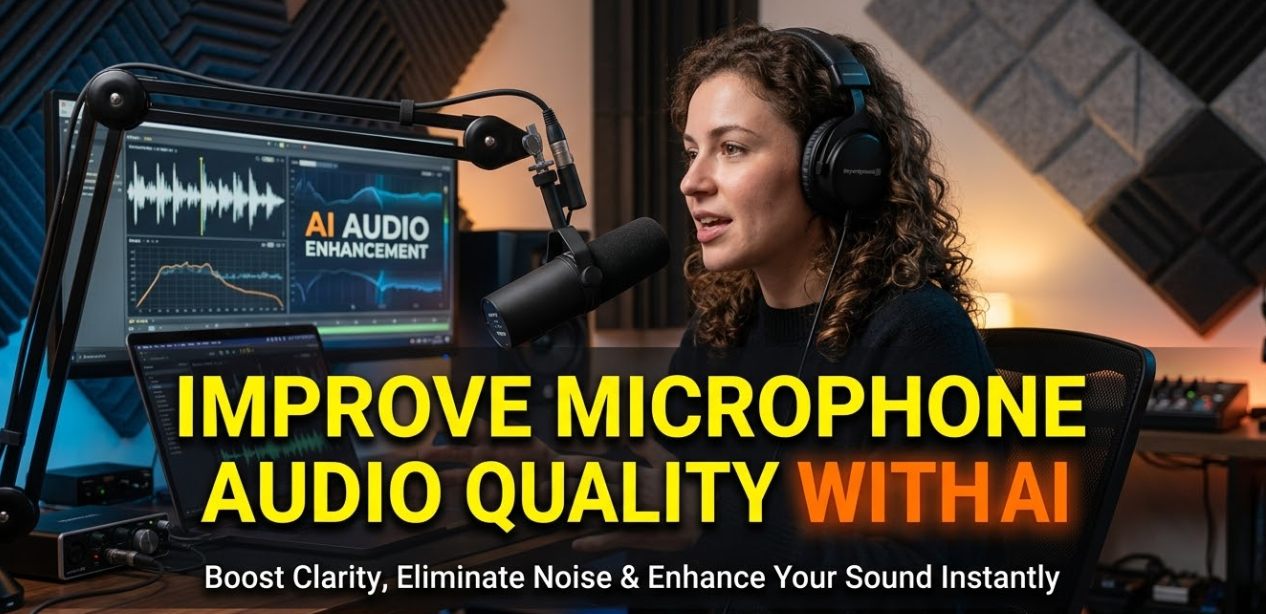
The good news? You can now improve microphone audio quality with AI — and you don’t need to be a sound engineer or spend thousands of dollars on gear to do it.
AI-powered audio tools have completely changed the game. They can remove background noise, enhance your voice, and fix common mic problems — all in real time or with just a few clicks. Whether you’re using a $20 USB mic or a $300 condenser, AI can help you sound like you’re in a professional recording studio.
In this guide, we’ll break down everything you need to know: how AI audio works, which tools are worth using, and practical tips to get the best results.
What Does “AI Audio Enhancement” Actually Mean?
Before we dive into tools and tips, let’s clear up what AI audio enhancement actually does.
Traditional audio editing required you to manually cut out noise, adjust EQ settings, and apply compression. That took time and skill. AI changes this by learning what “good audio” and “bad audio” sound like — and automatically fixing problems.
How AI Learns to Clean Up Sound
AI audio tools are trained on thousands (sometimes millions) of audio samples. The system learns the difference between a human voice and unwanted sounds like:
- Fan and HVAC noise
- Keyboard clicks
- Echo and reverb
- Background voices
- Hiss and static
Once trained, the AI can identify and remove these sounds from your recording — without touching the clarity of your voice. It’s like magic, but it’s just really smart software.
Real-Time vs. Post-Processing AI
There are two main types of AI audio tools:
| Type | What It Does | Best For |
|---|---|---|
| Real-Time AI | Cleans audio as you speak | Live calls, streaming, gaming |
| Post-Processing AI | Cleans audio after recording | Podcasts, voiceovers, videos |
Both are useful depending on your workflow. Some tools offer both options.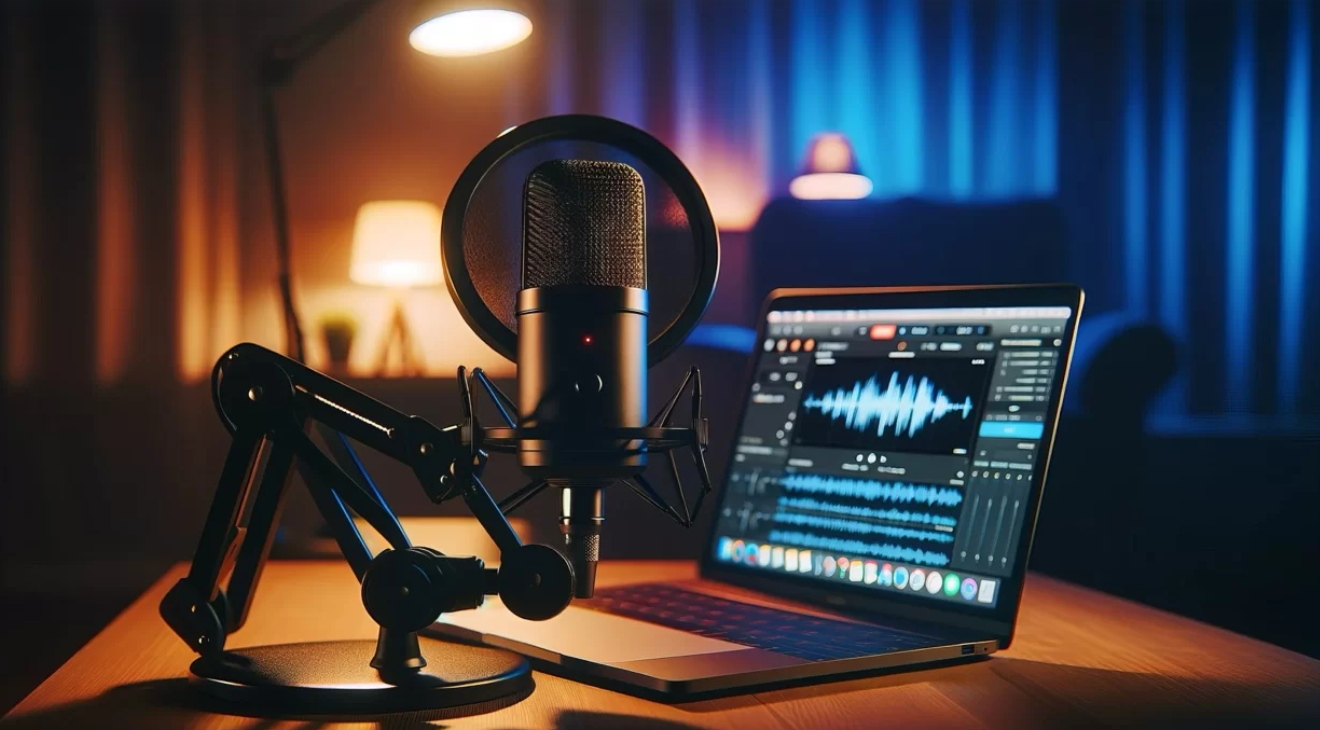
Top AI Tools to Improve Microphone Audio Quality
Let’s look at the most popular and effective AI tools available right now. These range from free to paid, beginner to advanced.
NVIDIA RTX Voice / NVIDIA Broadcast
If you have an NVIDIA GPU, this is one of the most powerful free options available. NVIDIA Broadcast uses AI to remove background noise in real time.
Key Features:
- Background noise removal
- Room echo reduction
- Works with any mic (even cheap ones)
- Virtual camera and background effects
It’s best for streamers, gamers, and remote workers. You’ll need a compatible NVIDIA GPU (RTX series works best), but some features work on older cards.
Krisp
Krisp is one of the most popular standalone AI noise-canceling apps. It sits between your microphone and your communication app, cleaning your audio in real time.
Key Features:
- Two-way noise cancellation (cancels noise on your end AND the caller’s end)
- Works with Zoom, Teams, Slack, Google Meet, and more
- Background voice removal
- Echo cancellation
- Meeting transcription (in paid plans)
Krisp offers a free tier with limited minutes and affordable paid plans. It’s a great choice for remote workers and business professionals.
Adobe Podcast (Enhance Speech)
Adobe has a free web-based tool called Adobe Podcast Enhance Speech. You upload an audio file, and Adobe’s AI processes it in seconds.
The results are genuinely impressive. It can take a recording made on a cheap mic in a noisy room and make it sound like it was recorded in a studio. Best of all, it’s free to use.
Key Features:
- Studio-quality enhancement
- Noise removal
- Voice clarity boost
- Free and browser-based
Audacity With AI Plugins
Audacity is a free, open-source audio editor that’s been around for years. It’s not AI on its own, but it supports plugins that use AI noise reduction.
The built-in Noise Reduction tool works well for basic cleanup. For more advanced results, you can add plugins like RNNoise (a deep learning noise reduction model).
This is a good option if you’re comfortable editing audio and want more manual control.
Cleanfeed
Cleanfeed is a browser-based platform designed for podcasters and broadcasters. It uses AI to deliver clean, high-quality audio over the internet.
It’s especially useful for recording remote interviews. Both parties connect through the browser, and the platform handles audio quality automatically.
DaVinci Resolve (Dialogue Leveler & Voice Isolation)
DaVinci Resolve is a professional video editor that now includes powerful AI audio tools. The Voice Isolation feature uses AI to separate dialogue from background noise with remarkable accuracy.
Even the free version includes these features, making it a strong choice for video creators.
Step-by-Step: How to Improve Microphone Audio Quality With AI
Let’s walk through a practical workflow you can follow to get cleaner audio.
Step 1 — Start With a Decent Recording Environment
AI is powerful, but it’s not magic. The better your source audio, the better the AI results. Here are quick tips:
- Record in a small, soft room (closets work great)
- Use a pop filter to reduce plosives (“p” and “b” sounds)
- Keep the mic close — about 6–8 inches from your mouth
- Turn off fans, AC, and other appliances if possible
Even cheap soundproofing (blankets, foam panels) makes a huge difference.
Step 2 — Choose the Right AI Tool for Your Workflow
Think about how you’ll use the audio:
- Live streaming or video calls? → Use Krisp or NVIDIA Broadcast for real-time noise cancellation
- Recording a podcast? → Record first, then use Adobe Podcast Enhance Speech or Audacity
- Creating YouTube videos? → Edit in DaVinci Resolve with Voice Isolation
Match the tool to your use case.
Step 3 — Run Your Audio Through the AI Tool
Each tool has a slightly different process, but here’s the general flow:
For Adobe Podcast Enhance Speech:
- Go to podcast.adobe.com/enhance
- Upload your audio file
- Wait for the AI to process (usually a few seconds to a minute)
- Download the enhanced file
For Krisp (real-time):
- Install Krisp and set it as your microphone input
- Open your video call app
- Select “Krisp Microphone” as your input device
- Toggle noise cancellation on
Step 4 — Fine-Tune With Basic EQ
Even after AI cleanup, a little manual EQ can help. Most DAWs (digital audio workstations) let you boost or cut specific frequencies:
- Cut below 80Hz — removes rumble and low-frequency noise
- Boost slightly around 2–5kHz — adds presence and clarity to your voice
- Cut around 250–400Hz if your voice sounds muddy
You don’t need to go deep into audio engineering. Even small adjustments make a noticeable difference.
Step 5 — Add Light Compression
Compression evens out the volume of your audio — loud parts become quieter, quiet parts become louder. This makes your voice sound more consistent and polished.
Most AI audio tools handle some compression automatically, but adding a light compression plugin in Audacity or Reaper can help.
AI vs. Traditional Noise Reduction: A Quick Comparison
Here’s a side-by-side look at how AI-powered audio enhancement compares to traditional methods:
| Feature | Traditional Noise Reduction | AI-Powered Enhancement |
|---|---|---|
| Ease of Use | Requires manual tweaking | Mostly automatic |
| Voice Preservation | Can sound robotic | Maintains natural voice |
| Background Noise Removal | Good for steady noise | Handles dynamic noise |
| Real-Time Processing | Rare, limited | Common |
| Cost | Often free (plugins) | Free to premium |
| Learning Curve | Moderate to high | Low |
| Results Quality | Varies widely | Consistently good |
For most people — especially beginners — AI tools win hands-down. They’re faster, easier, and deliver better results with minimal setup.
Common Mic Problems AI Can Fix
Not sure if AI can help your specific issue? Here are the most common mic problems and whether AI can fix them:
Echo and Reverb
Echo happens when your voice bounces off hard walls and surfaces. AI can detect and remove this reverb, making your audio sound cleaner and more direct.
Best tools: Krisp, Adobe Podcast Enhance Speech, DaVinci Resolve Voice Isolation
Background Noise
Background noise is the most common problem — fans, traffic, keyboard clicks, pets, and people talking nearby. AI excels at filtering these out.
Best tools: NVIDIA Broadcast, Krisp, RNNoise
Plosives and Harsh Sounds
Plosives (the popping “p” and “b” sounds) can be harsh and distracting. Some AI tools can smooth these out, though a physical pop filter is still the best prevention.
Best tools: Adobe Podcast Enhance Speech, post-processing plugins
Low Volume and Inconsistent Levels
AI tools that include automatic gain control (AGC) or loudness normalization can fix quiet, inconsistent recordings.
Best tools: Audacity (with normalization), DaVinci Resolve (Dialogue Leveler), Descript
Hiss and Static
Hiss is a common problem with budget mics, especially at higher gain settings. AI noise reduction handles this really well.
Best tools: NVIDIA Broadcast, Adobe Podcast Enhance Speech
Budget Microphones That Work Great With AI
You don’t need an expensive mic to get great results with AI audio tools. Here are some budget-friendly options that pair well with AI enhancement:
| Microphone | Price Range | Type | Best For |
|---|---|---|---|
| Blue Snowball iCE | ~$50 | USB | Beginners, podcasting |
| Audio-Technica AT2020 | ~$99 | USB/XLR | Podcasts, voiceovers |
| HyperX SoloCast | ~$60 | USB | Streaming, gaming |
| Samson Q2U | ~$70 | USB/XLR | Versatile, great value |
| FIFINE K669B | ~$30 | USB | Ultra-budget option |
Pair any of these with a tool like Krisp or Adobe Podcast Enhance Speech, and you’ll get results that compete with setups 10x the price.
For more tech tips and digital tools guidance, check out Cryptonews21 — a great resource for staying ahead with modern technology.
How AI Helps Specific Use Cases
Podcasters
Podcasters need clean, consistent audio episode after episode. AI tools like Adobe Podcast Enhance Speech and Descript make post-processing incredibly fast. You can record in a less-than-perfect environment, run the file through AI, and publish with confidence.
You can also learn more about audio editing best practices from resources like Transom.org, a trusted resource for podcasters and radio producers.
Streamers and Gamers
Real-time AI noise cancellation is essential for live content. NVIDIA Broadcast and Krisp are the go-to options. Your viewers won’t hear your keyboard, your fans, or background conversations — just your voice.
Remote Workers
Background noise during calls is unprofessional. With tools like Krisp running in the background, you can take calls from anywhere — a coffee shop, a busy office, or a noisy home — without worrying about what others will hear.
YouTubers and Video Creators
DaVinci Resolve’s Voice Isolation tool is a game-changer for video creators. You can clean up dialogue in the editing stage without ever touching complex audio software. It works even on footage recorded in loud environments.
Voice-Over Artists
Voice-over work demands the cleanest audio possible. AI tools help catch issues that might slip past your ears — subtle hiss, light reverb, or minor background noise — before submitting to clients.
Tips to Get the Most Out of AI Audio Tools
Here are some quick, practical tips to maximize your results when you improve microphone audio quality with AI:
- Record in mono unless stereo is specifically needed — AI processes mono more efficiently
- Keep your gain levels in check — don’t crank the gain so high that you introduce clipping, which AI can’t fix
- Use a mic stand or boom arm — handling noise from holding a mic is hard for AI to remove
- Test before going live — always do a test recording and run it through your AI tool before a podcast or stream
- Layer your tools — use both real-time AI (for live calls) and post-processing AI (for final exports)
- Check the output — AI isn’t perfect. Always listen to the result before publishing
- Update your tools — AI audio tools improve constantly through software updates
Is Free AI Audio Good Enough?
A question many people ask is whether they need to pay for premium AI audio tools or whether the free options are enough. Here’s an honest breakdown:
Free tools are great for:
- Casual podcasting or streaming
- Remote work video calls
- YouTube videos where near-perfect quality isn’t required
- Testing AI audio before committing to a paid plan
Paid tools are worth it for:
- Professional podcasting or voice-over work
- Daily remote work in noisy environments (the time saved pays for itself)
- Advanced features like transcription, two-way noise cancellation, or team collaboration
- Situations where audio quality directly affects income or reputation
For most people starting out, free tools like Adobe Podcast Enhance Speech and the free tier of Krisp are more than enough to improve microphone audio quality with AI significantly.
Frequently Asked Questions
Q: Can AI fix audio that was recorded badly?
Yes, AI can fix many common audio problems — background noise, hiss, echo, and reverb. However, it can’t fix audio that was clipped (distorted from too-high gain) or audio where the voice is completely buried under loud noise. The better your source recording, the better the AI results.
Q: Does AI noise cancellation affect my voice quality?
Modern AI tools are designed to preserve your voice while removing noise. Early versions of noise cancellation sometimes made voices sound robotic, but today’s AI tools — especially Krisp, NVIDIA Broadcast, and Adobe Podcast — do an excellent job of keeping your voice natural.
Q: Do I need a powerful computer to use AI audio tools?
It depends on the tool. NVIDIA Broadcast requires an RTX GPU. Krisp and Adobe Podcast Enhance Speech are much less demanding and run on most modern computers, including laptops. Browser-based tools like Adobe Podcast require no special hardware at all.
Q: Can I use multiple AI tools together?
Yes. Many creators stack tools — for example, using Krisp for real-time noise cancellation during recording, then running the file through Adobe Podcast Enhance Speech for an extra layer of cleanup before publishing.
Q: Will AI audio tools work with any microphone?
Yes. AI tools work with any microphone — USB, XLR, headset, or even a laptop’s built-in mic. Obviously, a better mic gives you a better starting point, but AI can significantly improve the output of even a cheap mic.
Q: Are there AI audio tools for mobile?
Yes. Apps like Krisp and NVIDIA RTX Voice have mobile-friendly versions or companion apps. Some video conferencing apps like Zoom also have built-in AI noise suppression that works on mobile.
Q: How much does Krisp cost?
Krisp offers a free plan with limited minutes per week. The Pro plan is around $8–$12 per month and includes unlimited usage, meeting transcription, and other features. Pricing may change, so check their official website for the latest.
Wrapping It All Up
Improving your audio quality no longer requires a professional studio, expensive equipment, or years of experience. AI has made it accessible to everyone — students, creators, remote workers, and podcasters alike.
The key takeaways from this guide are:
- AI audio tools can dramatically improve microphone audio quality — even with budget gear
- Real-time tools like NVIDIA Broadcast and Krisp are best for live calls and streaming
- Post-processing tools like Adobe Podcast Enhance Speech are ideal for recordings
- Free tools work great for most use cases
- A good recording environment still matters — AI is a powerful helper, but not a replacement for good habits
- Stack your tools for the best results — combine real-time and post-processing AI
Whether you’re recording your first podcast or trying to sound more polished on your next client call, there’s an AI tool that can help you level up your audio. Start with the free options, test what works best for your setup, and build from there.
Clean audio isn’t just a technical detail — it’s a sign of respect for your audience’s time. And with AI, getting there has never been easier.